Amazon A+ Content: The Complete Guide for Brands to Boost Sales on Amazon
Amazon A+ Content helps eligible brands enhance Amazon listings with images, text modules, comparison charts, Brand Story, and Premium features to improve product presentation, shopper engagement, and conversion.
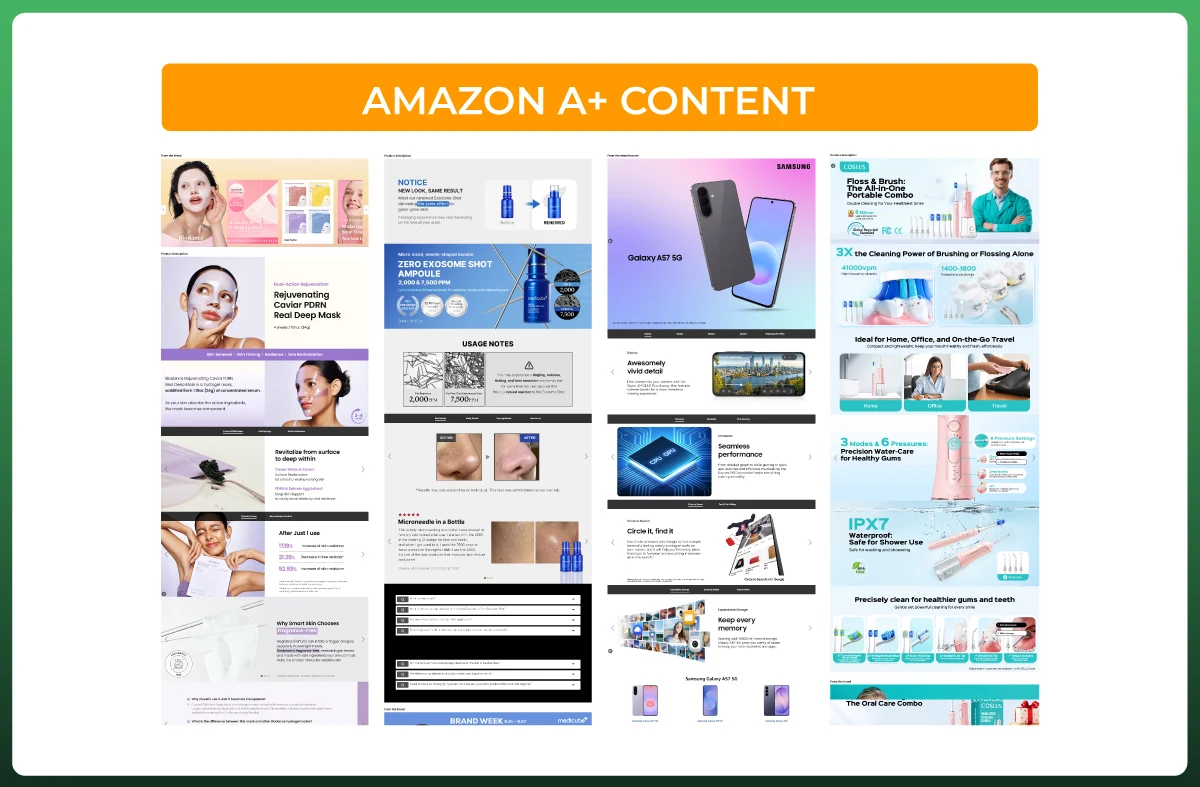
Amazon A+ Content is a free tool that replaces the plain product description with images, comparison charts, and text modules. Brand owners and approved brand representatives use it to answer buyer questions on the listing itself, before shoppers leave to look for answers elsewhere.
Amazon says Basic A+ Content can lift sales by up to 8%, and well-built Premium A+ Content by up to 20%, based on its own internal data. Those are ceilings, not promises. Your real gain depends on your traffic, price, and reviews.
Today, we’ll discuss who qualifies, how to build content step by step, the rules that get it rejected, and how to structure modules so shoppers actually buy.
Let’s begin.
What Is Amazon A+ Content?
A+ Content, once called Enhanced Brand Content or EBC, lets you build the product description area with images, video, and custom text layouts. You arrange pre-built modules, such as an image beside text or a comparison chart. You will also see it written as A+ content.
You control the story further down the page: how the product is used, what makes it different, and how your other products compare. Amazon publishes the content on the ASINs you choose once it passes review, and you can only apply it to ASINs that belong to your brand.
Basic A+ Content
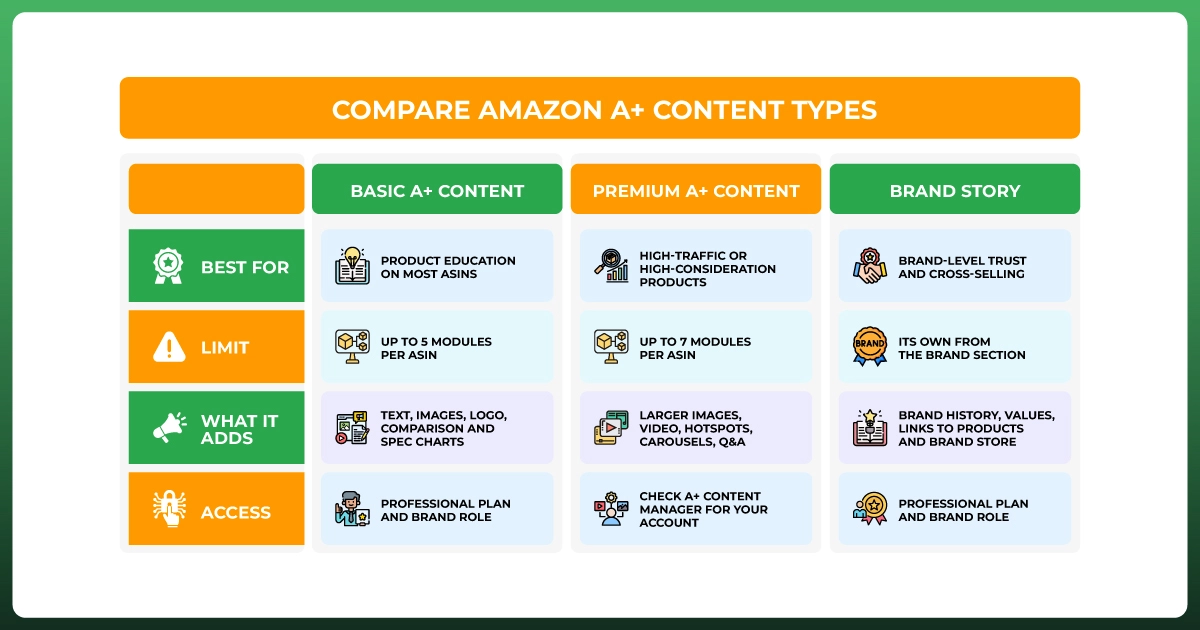
Basic A+ Content is open to every seller who meets Amazon’s requirements, and it costs nothing to publish. You can add up to five modules per ASIN, built from text, images, your logo, comparison charts, and technical specification charts.
It covers most products well. A clean header image, three or four benefit callouts, and a comparison chart already give shoppers far more to work with than the plain text description ever could.
Premium A+ Content
Premium A+ Content raises the limit to seven modules per ASIN. It also adds larger images, video, interactive hotspots, clickable carousels, Q&A sections, and enhanced comparison charts. Sellers often call it A++, but that is a nickname, not an official Amazon label.
Amazon says well-implemented Premium content can lift sales by up to 20%. Whether you can use it depends on your account and how Amazon rolls the feature out, which we cover in the eligibility section below.
Brand Story
Brand Story appears in the From the Brand section of the detail page. It carries your brand’s history, values, and product line across your listings through images, text, carousels, and links to your products and your Amazon Brand Store.
You do not need other A+ Content to publish a Brand Story, but the two work best together. Keep the brand-level message in Brand Story and save product details for your A+ modules.
Is Amazon A+ Content Worth It?
For most brands with real traffic, yes. Amazon reports that Basic A+ Content can increase sales by up to 8% and Premium by up to 20%. Both figures are Amazon’s own data, so treat them as a ceiling rather than a forecast.
A+ Content helps shoppers who are already interested. It will not rescue weak main images, a high price, or thin reviews, so fix those first. If you run ads, a stronger page also gives each paid click a better chance to convert, which pairs well with Amazon PPC management.
Advantages of A+ Content
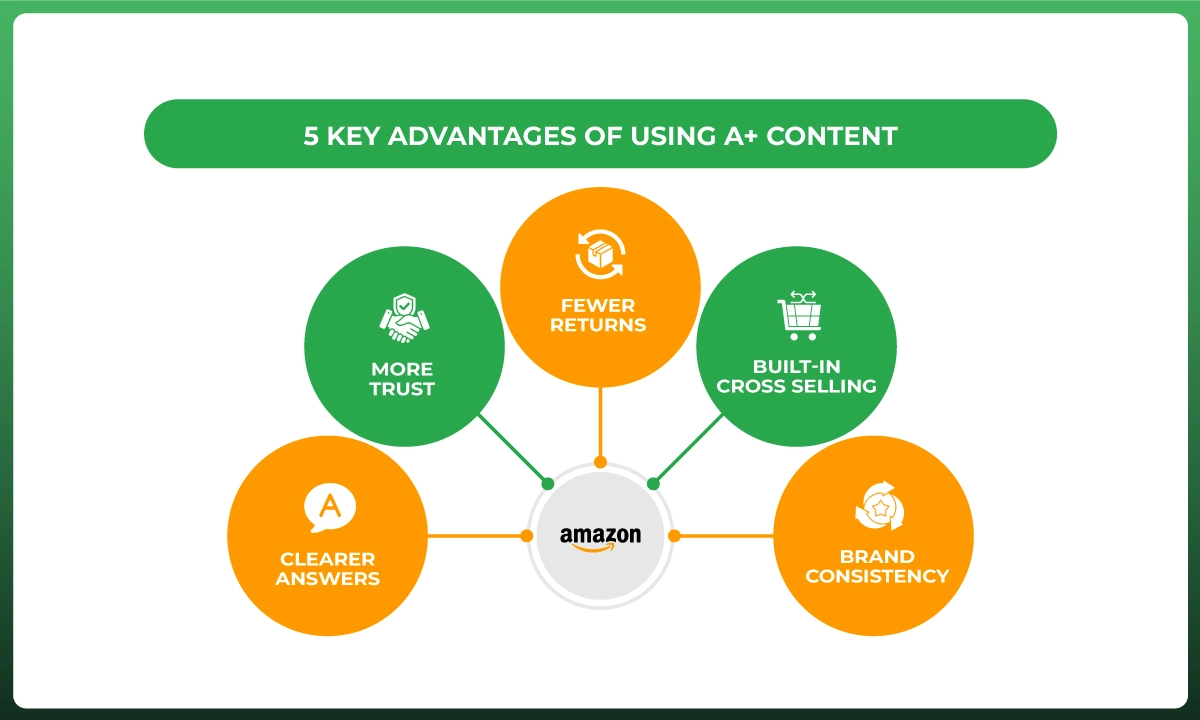
Clearer answers. Text, images, and charts explain size, use, and differences before a shopper has to guess.
More trust. A consistent look across your catalog makes a brand feel established, which matters most for newer names.
Fewer returns. Amazon lists reduced customer returns among the benefits, since buyers know what they are getting.
Built-in cross-selling. A comparison chart lets you show other products from your catalog on the same page.
Brand consistency. Brand Story carries one message across every listing.
Disadvantages of A+ Content
Access rules. You need a Professional selling plan and a brand role, so not every seller qualifies.
Creative cost. Publishing is free, but good copy, photography, and design take time or budget.
Review wait. New and edited content goes through Amazon’s review before it appears.
No guaranteed lift. The 8% and 20% figures are ceilings, and unclear content will not reach them.
Premium is not always available. Access depends on your account.
Who Can Use Amazon A+ Content?
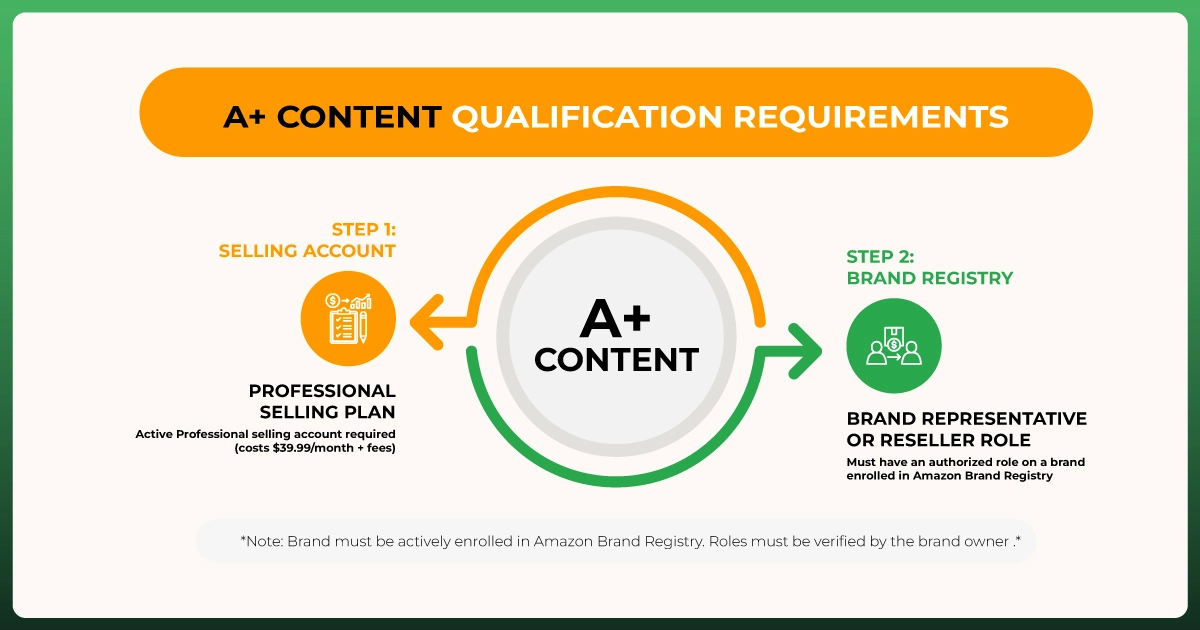
Amazon’s requirement is simple on paper. You need a Professional selling account, which costs $39.99 a month plus selling fees, and a Brand Representative or Reseller role on a brand enrolled in Amazon Brand Registry. Sellers with generic products in their catalog can also qualify.
Brand Registry itself requires a trademark for your brand name or logo. Approval can take time, so start early. If you have not enrolled yet, our Amazon Brand Registry guide covers how to apply.
One more limit to remember: you can only apply A+ Content to ASINs that belong to your brand. Vendors who sell to Amazon directly use Vendor Central, where the same feature is called Enhanced Marketing Content.
Who Can Use Premium A+ Content?
This is where older guides go wrong. Amazon used to require a published Brand Story on your listings and five approved A+ modules in the past 12 months. Industry reports from May 2026 say Premium now appears by default for many brand owners, but Amazon publishes no single fixed rule.
The safest check is to open A+ Content Manager and see whether Premium shows as an option when you start new content. Do not plan a video shoot until you have seen it there.
How to Create Amazon A+ Content Step by Step
Amazon’s flow is short once your account is ready. Here is the process from a clean start to a submitted project, including the AI generator and the alt text step, which are both easy to overlook.
Step 1: Check Your Seller Plan and Brand Role
Confirm that you have a Professional selling plan and a Brand Representative or Reseller role on an enrolled brand.
Step 2: Open A+ Content Manager
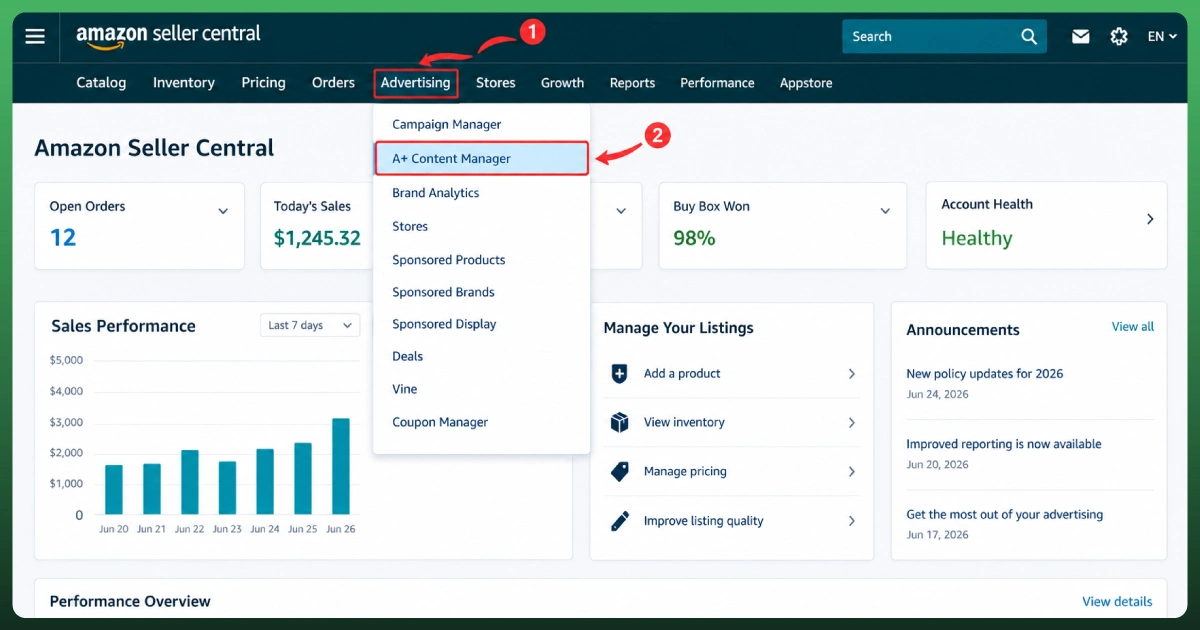
In Seller Central, hover over Advertising in the main menu and select A+ Content Manager. Then choose Start creating A+ Content. If the option is missing, check your Brand Registry status and role permissions first.
Step 3: Choose Your Content Type
Pick Basic, Premium, or Brand Story. You can start from a specific ASIN or build the content first and attach ASINs later. A sensible start is Basic A+ Content on your highest-traffic ASIN, then expand once you see how it performs.
Step 4: Add Modules and Write Your Content
Select Add module and choose layouts that answer real buyer questions, not the ones that look busiest. Keep copy short and specific, use bullet points where they help, and aim for one clear idea per module.
Modules with an AI Ready badge can generate text or image content. Choose Select content to generate, pick the fields, enter a brand-owned ASIN, and select Generate content. Edit everything it gives you, because you are still responsible for meeting Amazon’s rules.
Step 5: Add Alt Text and Preview
Fill in the alt text for every image, then use the preview to check the desktop and mobile versions. Save as a draft if you are not ready to submit. Mobile previews are where cropped images and tiny text show up first.
Step 6: Apply ASINs
Select Apply ASINs, choose your products, and select Apply Content. You can apply one project to a single ASIN, several ASINs, or your whole catalog with bulk upload. Only reuse content where the details match, since sizes, ingredients, or compatibility can differ by variation.
Step 7: Submit for Review
Select Review and submit. Approved content appears on the chosen detail pages automatically. Amazon usually reviews within a few business days, but plan for up to seven when a launch or promotion depends on it. You can edit the content later in A+ Content Manager.
Amazon A+ Content Guidelines and Requirements
Amazon rejects content that breaks its rules, and small slips are the usual cause. Read this section before you design anything, because fixing a finished set of images costs far more than planning around the rules from the start.
What Amazon Does Not Allow
Claims such as best-selling or top-rated, in text or in images
Warranty or guarantee information in text placements
Pricing, promotional, or shipping details
QR codes, hyperlinks, directions to other web pages, or contact information
References to competitors, or comparisons with them
Low-resolution or animated images
Awards or endorsements without the certifying body and year
Images, video, or text you do not have the rights to use
Shipping speed belongs to your offer, not your A+ Content.
Compliance rewrites are usually simple. Instead of “the best water bottle on Amazon,” write “double-wall stainless steel for hot and cold drinks.” State what the product is and does, and let your reviews make the case for the superlatives.
Image and File Requirements
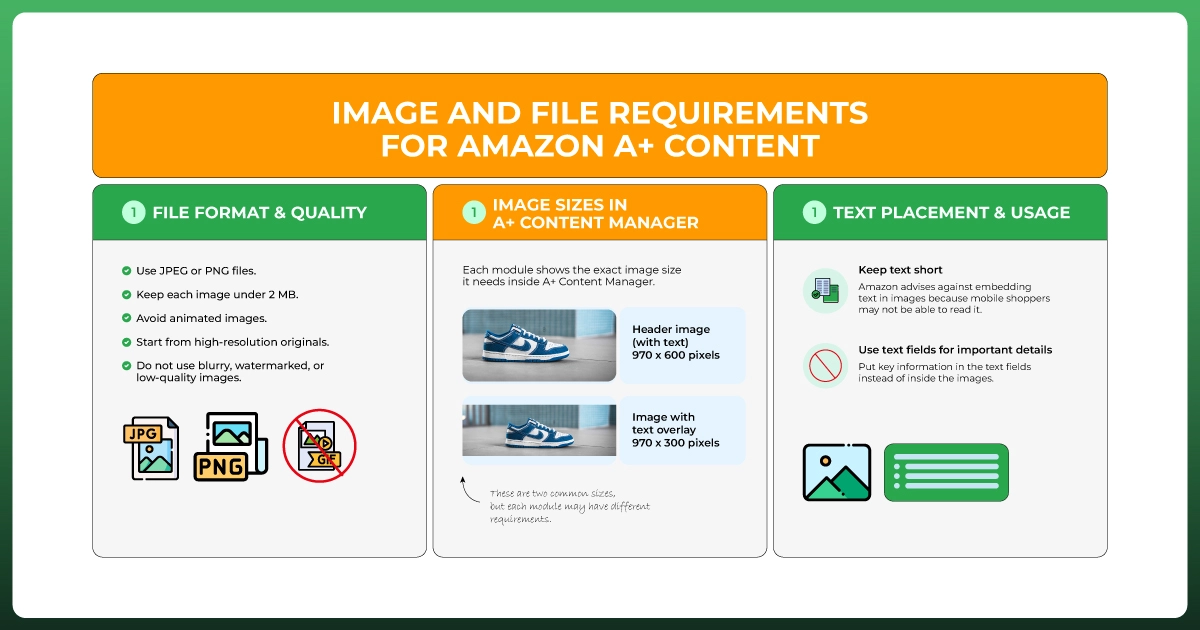
Use JPEG or PNG files, keep each image under 2 MB, and avoid animated images. Blurry, watermarked, or low-quality images are not allowed, so start from high-resolution originals and export them at the size each module asks for.
Each module shows the exact image size it needs inside A+ Content Manager, so follow that rather than a fixed list. Two common sizes are 970 x 600 pixels for a header image with text and 970 x 300 pixels for an image with a text overlay.
Keep text inside images short. Amazon advises against embedding text in images because mobile shoppers may not be able to read it, so put the important details in the text fields instead.
Alt Text
Amazon requires alt text, which it once called image keywords, for A+ images. It does not show on the page, but screen readers use it. A reply in Amazon’s seller forums says it also helps products appear in search results.
Write one simple sentence that describes what the image shows, such as “Stainless steel water bottle on a trail rock beside a backpack.” Do not repeat the same keywords on every image. Alt text that does not describe the image can get your content rejected.
Best Modules and Layout for A+ Content
Amazon’s own design advice comes down to a few habits: balance text and images, add technical specifications where they help, use comparison charts, and tell your brand story. Premium adds video, hotspots, carousels, and Q&A. These are the A+ content best practices worth building around.
A Starting Layout That Follows Buyer Questions
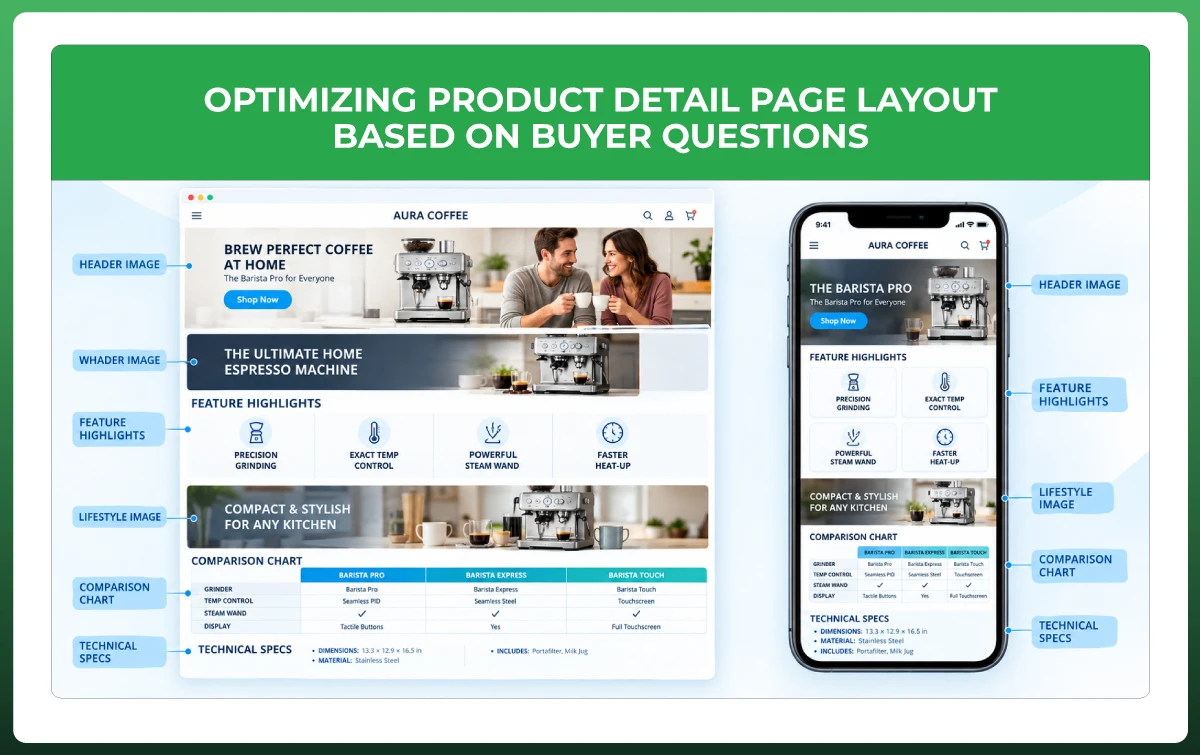
Shoppers scan a detail page for answers in a rough order. What is this, why is it better, will it work for me, and which version should I pick? A layout that follows those questions feels natural. Treat it as a starting point, not an Amazon rule.
Header image: the product, its main benefit, and who it is for.
Feature highlights: three or four benefits, each with a short line of copy.
Lifestyle image: the product in real use, showing scale and context.
Comparison chart: your own variants or related products, so shoppers pick the right one.
Technical specifications: size, materials, compatibility, or what is in the box.
With Premium, you can add a demo video near the top and a Q&A module near the end to handle final doubts. That takes you to seven modules, the Premium limit.
Match Modules to Your Product
Electronics: technical specifications, compatibility, and what is in the box.
Beauty and supplements: ingredients and usage, worded carefully because health claims must be accurate and supportable.
Home and kitchen: dimensions, materials, and care instructions.
Apparel: fit, fabric, sizing, and care.
Products with variants: a comparison chart, so shoppers can choose a size or model.
Design for Mobile First
Many shoppers will see your content on a phone, so check the mobile preview before every submission. Text that looks fine on a desktop can shrink to nothing. Put your strongest module first and keep embedded text to a minimum.
Test What Works With Manage Your Experiments
Amazon’s Manage Your Experiments tool lets brand owners run A/B tests on listing content, including A+ Content. Your ASIN needs enough recent traffic for valid results, and the content you test must already be published.
Make version B clearly different from version A, and let the test run its full length before you decide. That kind of steady A+ content optimization beats guessing which layout shoppers prefer.
Does Amazon A+ Content Help With Search and AI Shopping?
Partly. Amazon’s seller forums say alt text helps A+ products appear in search results. Beyond that, the benefit is mostly indirect: a page that answers questions can convert better, and better conversion supports listing performance over time.
Amazon product pages are public, so Google can crawl the text on them too. That is one more reason to write plain, specific copy about materials, sizes, and use cases instead of vague brand lines.
Amazon’s shopping assistant matters here as well. Amazon retired the Rufus name on May 13, 2026, and now calls the assistant Alexa for Shopping in the US, merging Rufus with Alexa+.
When Rufus launched, Amazon said it answers questions using listing details, customer reviews, and community Q&As. Amazon has not said how it weighs A+ text, but many sellers report that clear copy helps, so write sentences a shopper could quote back.
Compare “made for modern living” with “a compact desk lamp with three brightness levels and a USB charging port.” The second gives a shopper, and an AI assistant, something concrete to work with.
Common Amazon A+ Content Mistakes to Avoid
Pretty but empty. A striking banner with no information does not help a shopper decide. Every module should answer a question or remove a doubt.
Text baked into images. Long text inside images is hard to read on a phone. Use the text fields instead.
Skipping the mobile preview. Cropping and tiny text are easy to miss on a desktop screen.
Copying one project across every ASIN. If size, ingredients, or compatibility differ, the content should too.
Ignoring Brand Story. It is free space that carries your message across every listing.
Inconsistent design across the catalog. Different tones and layouts weaken brand recognition.
Breaking the rules by accident. One best-seller line or competitor mention can send a whole project back.
Set and forget. Refresh content when the product, packaging, or category expectations change.
Should You Hire an A+ Content Service?
You can build A+ Content yourself if you have a small catalog, a designer or a good eye for layout, and time to learn the rules. Amazon’s tools are free, and the templates make basic layouts easy to assemble.
Outside help makes sense when you have many ASINs, need Premium video or hotspot work, lack design capacity, or keep getting rejections. Good A+ content services handle the copy, image sizes, alt text, and mobile checks, not just the graphics.
A+ content creation takes design, writing, and compliance checks working together. Ask any provider three things. Who writes the copy? How do they check content against Amazon’s guidelines before submitting? And do you own the source files afterward?
If you want one team to manage listing content alongside the rest of your marketplace work, our marketplace management service covers that. Our team can also review your current A+ Content and point out what to fix first.
Frequently Asked Questions
What is Amazon A+ Content?
Amazon A+ Content is a Seller Central tool that lets eligible brands replace the plain product description with images, comparison charts, text modules, and, with Premium, video. It was formerly called Enhanced Brand Content, and it appears on the ASINs you choose.
Is A+ Content free?
Yes. Amazon does not charge to publish A+ Content for sellers who meet its requirements. Your costs are the Professional selling plan, at $39.99 a month plus selling fees, and any design, photography, or copywriting help you pay for.
How long does Amazon take to approve A+ Content?
Amazon usually reviews content within a few business days. Plan for up to seven business days, especially before launches or seasonal promotions. If content is rejected, check the feedback on your project in A+ Content Manager, fix the issue, and resubmit.
Does A+ Content help Amazon SEO?
Partly. Amazon’s seller forums say alt text helps A+ products appear in search results, and clearer content can lift conversion, which supports performance over time. Treat A+ Content as a conversion tool first, and keep your title and bullets keyword-focused.
What is the difference between Basic and Premium A+ Content?
Basic A+ Content uses text, images, logos, and comparison charts, with up to five modules per ASIN. Premium raises the limit to seven and adds video, hotspots, carousels, and Q&A modules. Sellers sometimes call Premium A++, but that is a nickname, not an Amazon label.
Where do I find A+ Content Manager?
In Seller Central, hover over Advertising in the main menu and select A+ Content Manager. If you do not see it, check that your account has a Professional selling plan and a Brand Representative or Reseller role on an enrolled brand.
Can I use A+ Content without Brand Registry?
Amazon requires a Brand Representative or Reseller role on a brand enrolled in Brand Registry, or generic products in your catalog. If you sell a branded product without either, enroll the brand first. Brand Registry itself requires a trademark.
Why was my A+ Content rejected?
Common causes are claims like best-selling, pricing or promotions, competitor references, links or contact details, low-quality images, and alt text that does not describe the image. Check the feedback on your project, fix that item, and resubmit.
Need High-Converting Amazon A+ Content?
Boost Your Product Listings With Professional Amazon A+ Content Design Services From Ecomgiantz.
Ecomgiantz Team consists of our in-house experts who share their hands-on experience in ecommerce businesses, websites, marketplaces, etc. We also share the latest updates, insights, and market trends that can be helpful for your online business.