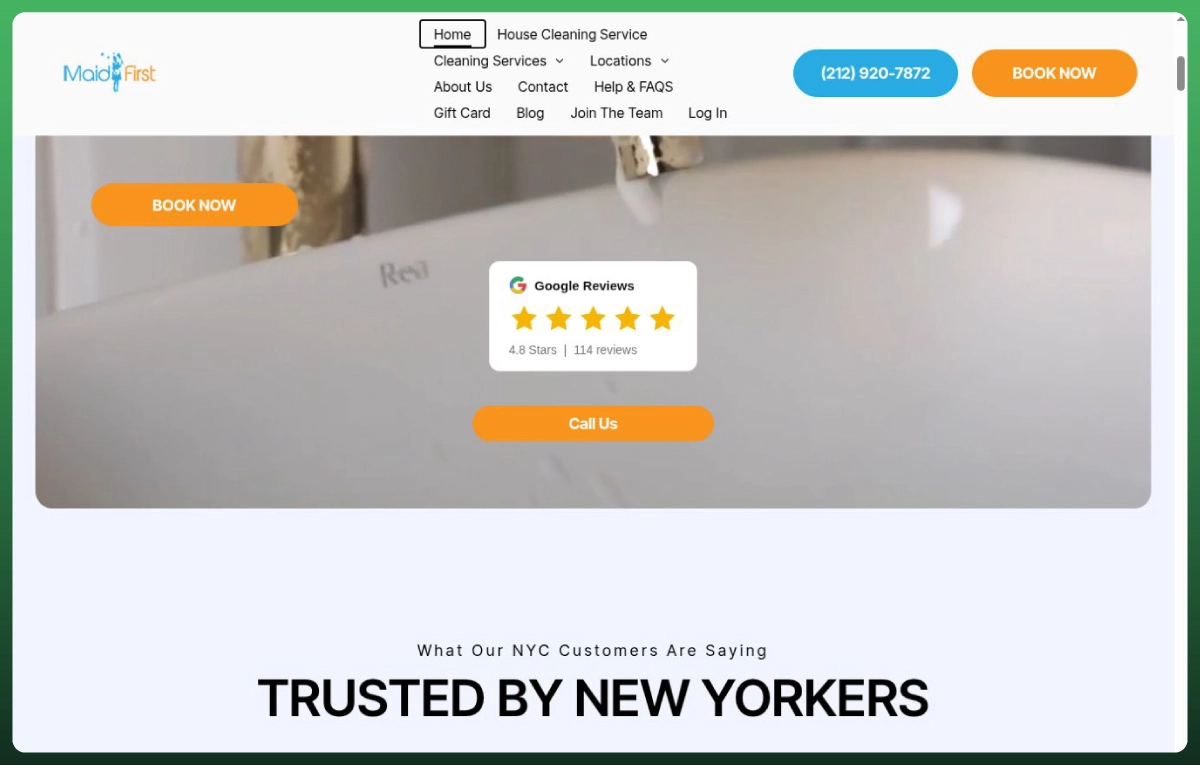
How to Add Google Reviews to Wix Websites (4 Methods, Step by Step)
Learn how to add Google reviews to a Wix website using four easy methods. Follow step-by-step instructions to display customer feedback, build trust, and improve website credibility without coding.
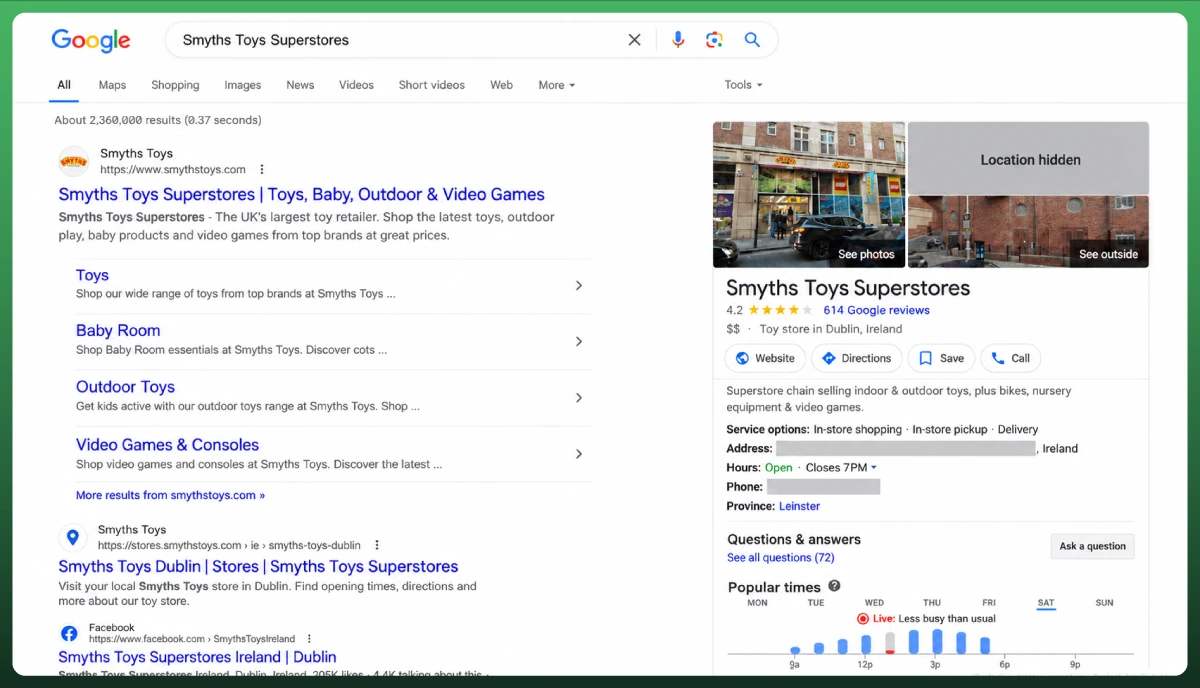
Showing Google reviews of your business on your Wix site is a great way to increase credibility and trustworthiness. There are 4 simple ways to add Google reviews to a Wix website, which are:
Throughout the Wix market
Using a third-party embed widget
Manually copying reviews
Embedding Google Maps
From my experience, the fastest way here is installing a reviews app directly from the Wix App Market. You just open your Wix Editor, click Add Apps on the left sidebar, search for Google Reviews, install your preferred app, and connect your Google Business Profile. Your reviews will appear on your site within minutes.
Today, I will explain the methods mentioned above. Each method suits a different situation, and the right one depends on your budget, technical expertise, and how many reviews you want to display on the site.
This guide walks you through all four options in simple steps with detailed instructions that work on the Wix Editor, Wix Studio, and the new Wix Harmony Editor released in January 2026.
Before You Start: What You Need
Before you begin to add Google Reviews to your Wix website, make sure you have these essentials ready. Skipping any of these creates unnecessary roadblocks during setup.
A Claimed Google Business Profile
Your business must have a verified Google Business Profile (formerly Google My Business) with at least a few customer reviews already posted. If you have not claimed your listing yet, visit Google's Business Profile setup page to get started. You will need this whether you use the Google Places API key method or a simpler widget approach.
A Wix Premium Plan (for Most Methods)
This is important, and most guides bury it. Wix's free plan does not allow external HTML embeds on live published sites. If you plan to use the Wix App Market or any embed option, you will need at least a Wix Premium version. The only method that works on the free tier is adding reviews manually through text blocks or screenshots.
Access to Your Editor
Know which Wix Editor you are using. Since January 2026, new Wix sites default to the Harmony Editor. Existing sites may still use the Classic Editor or Wix Studio. The embed steps differ slightly between these editors, and this guide covers all three.
4 Ways to Add Google Reviews to a Wix Website (Quick Comparison)
Here is a side-by-side comparison to help you pick the right method for your situation before diving into the steps.
Method
Difficulty
Cost
Auto-Updates
Best For
Wix App Market
Easy
Free + paid tiers
Yes
Single site, quick setup
Third-Party Embed Widget
Easy
Free + paid tiers
Yes
Design control, multi-site
Manual (Copy or Screenshot)
Medium
Free
No
Fewer than 5 reviews
Google Maps Embed
Easy
Free
Partial
Local businesses
When we build Wix websites for clients, the choice usually comes down to two factors: how many reviews the business has and how much control they want over the design. Businesses with an active reviews feed and steady review posting benefit most from the App Market or embed widget methods because they sync automatically.
Method 1: Install a Google Reviews App From the Wix App Market
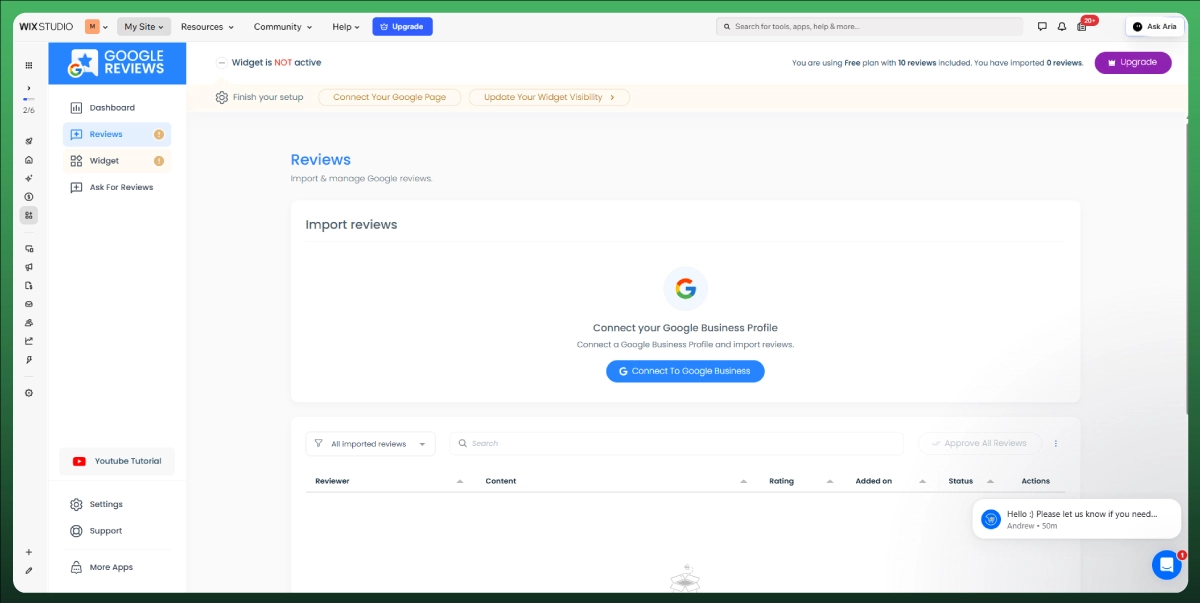
This is the simplest path. You install a dedicated app that pulls Google Reviews into your Wix site with no coding required. The entire process takes about five to ten minutes, and the app handles all the heavy lifting.
Steps for the Classic Wix Editor
Step 1:
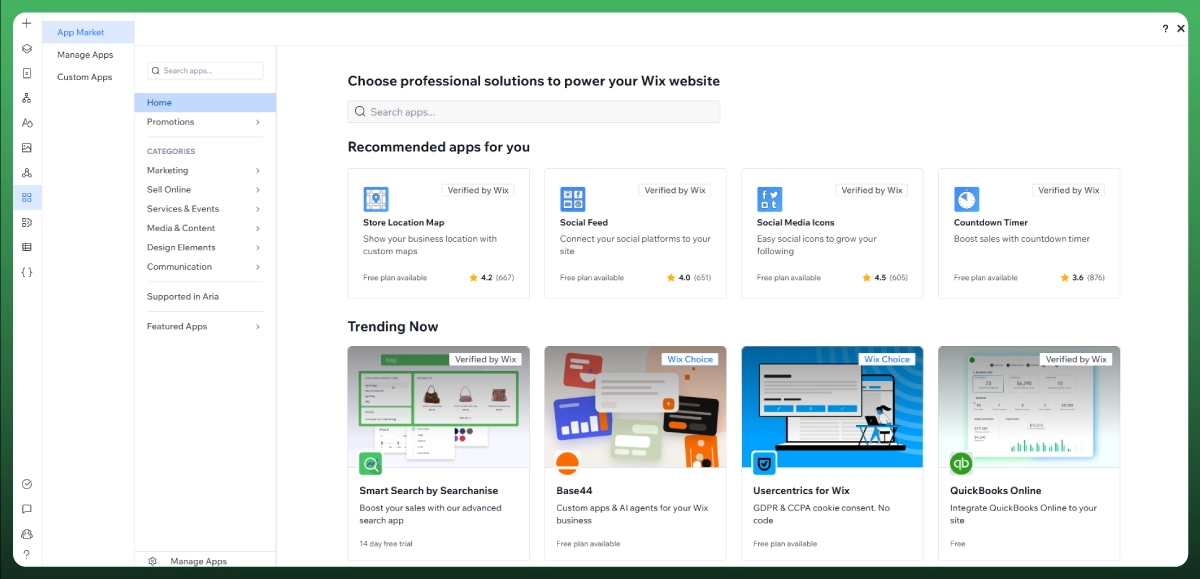
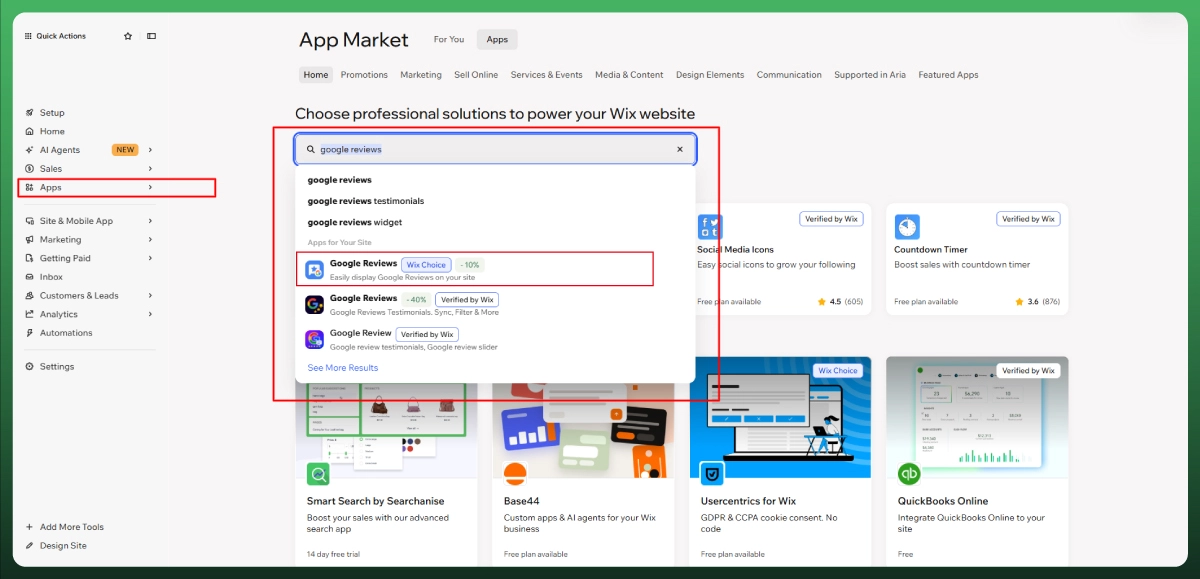
Open your Wix Editor and click Add Apps on the left sidebar. This opens the Wix App Market.
Step 2:
In the search bar, type "Google Reviews." You will see several options, including Google Reviews by Elfsight, Fera Reviews, Mango Digital's Google Reviews Slider, and others. Each app offers a free tier with limited reviews and paid plans with more features.
Step 3:
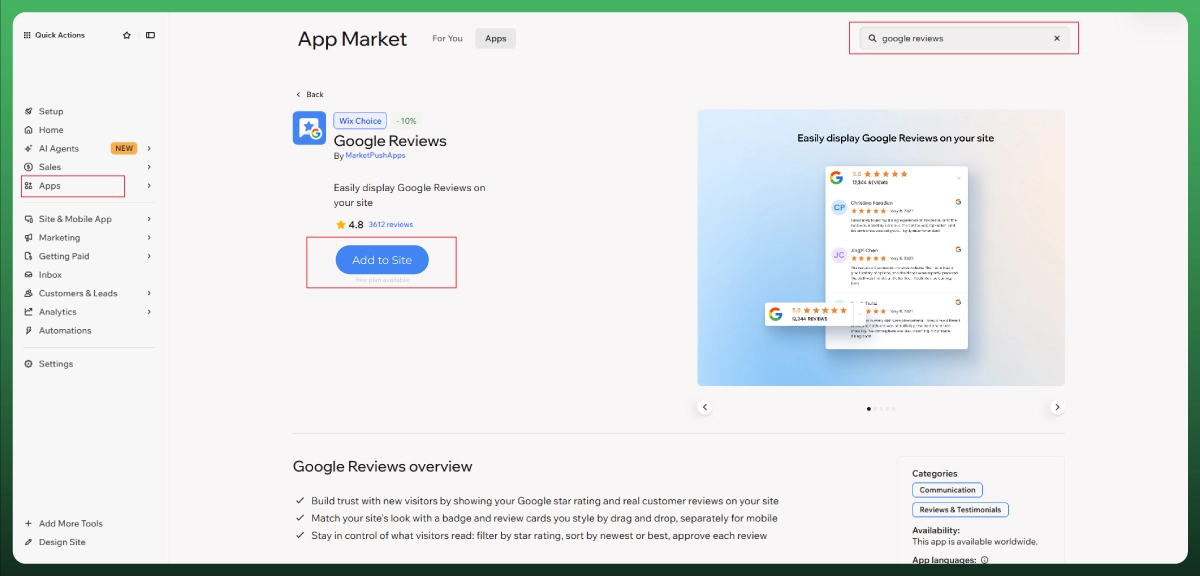
Click Add to Site on your chosen app. Wix installs it and places a placeholder review widget on your current page.
Step 4:
Open the app settings, connect it to your Google Business Profile by entering your business name or Google Place ID, and select a layout. Options typically include a review slider, grid, or list format. Adjust customization options like colors, fonts, and the minimum rating filter to match your site design.
Step 5:
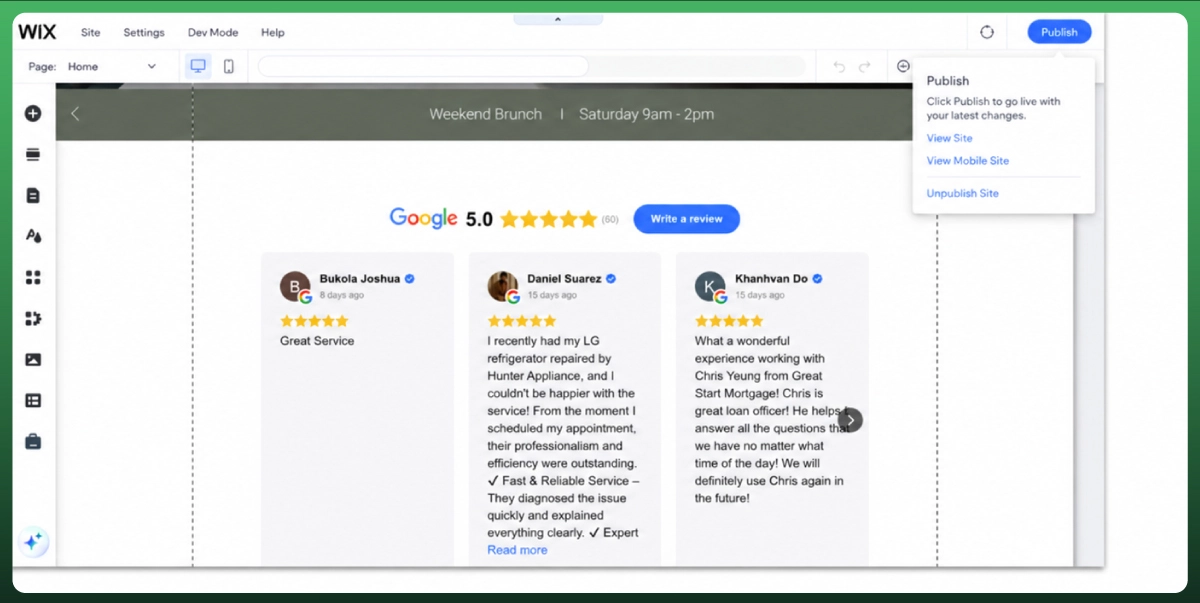
Drag the widget to your preferred location, resize it, and click Publish.
Steps for the Wix Harmony Editor (2026)
If your site uses the new Harmony Editor, the app installation path is slightly different. Click + Add at the top left corner of the editor, then select Apps from the panel. Search for "Google Reviews," install the app, and follow the same setup steps above.
Pros of This Method
Zero coding needed.
Auto-syncing reviews feed means new customer reviews appear automatically.
Most apps offer a customer support team if you run into issues. Built-in customization options for layout and styling.
Cons of This Method
Free tiers typically cap at 5 to 10 reviews.
Paid plans range from $5 to $15 per month, though they often unlock numerous features like automated review requests via email, collection forms, and custom CSS functionality.
Design flexibility is still more limited than a custom embed, and you are locked into that app's update cycle.
Method 2: Use a Third-Party Google Reviews Embed Widget
If you want more control over how your Google Reviews look or plan to manage reviews across multiple websites, a third-party embed widget gives you that flexibility. Tools like SociableKIT, Tagembed, and EmbedSocial let you create a single widget, customize it, and paste the embed code into your Wix site.
How It Works (General Process)
Step 1:
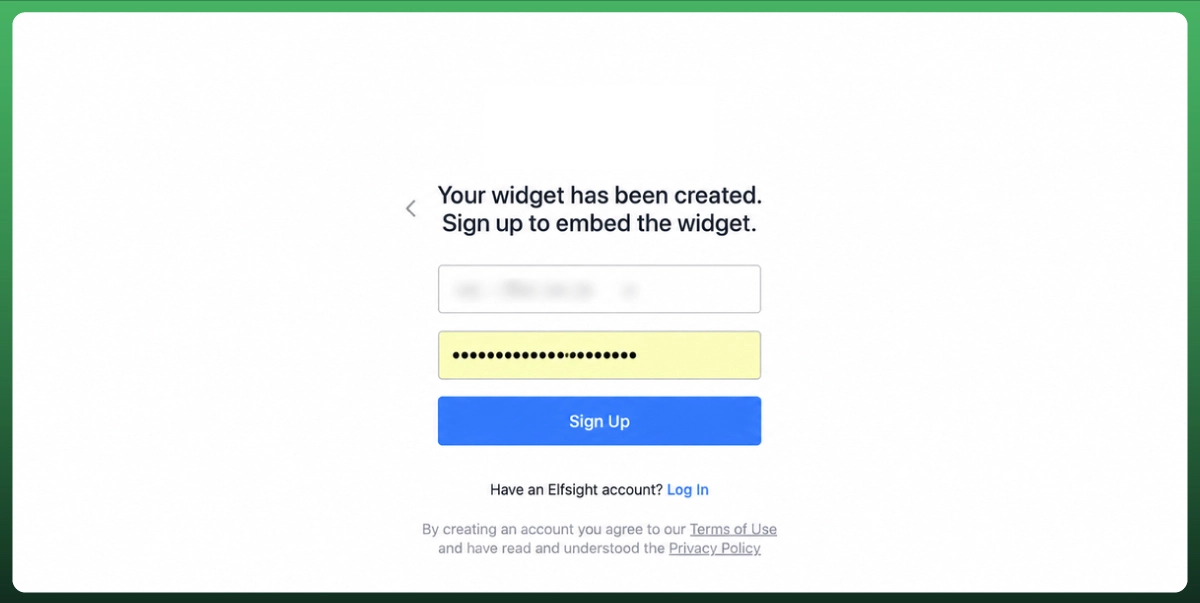
Sign up for a reviews widget tool of your choice. Most offer free plans that cover basic needs.
Step 2:
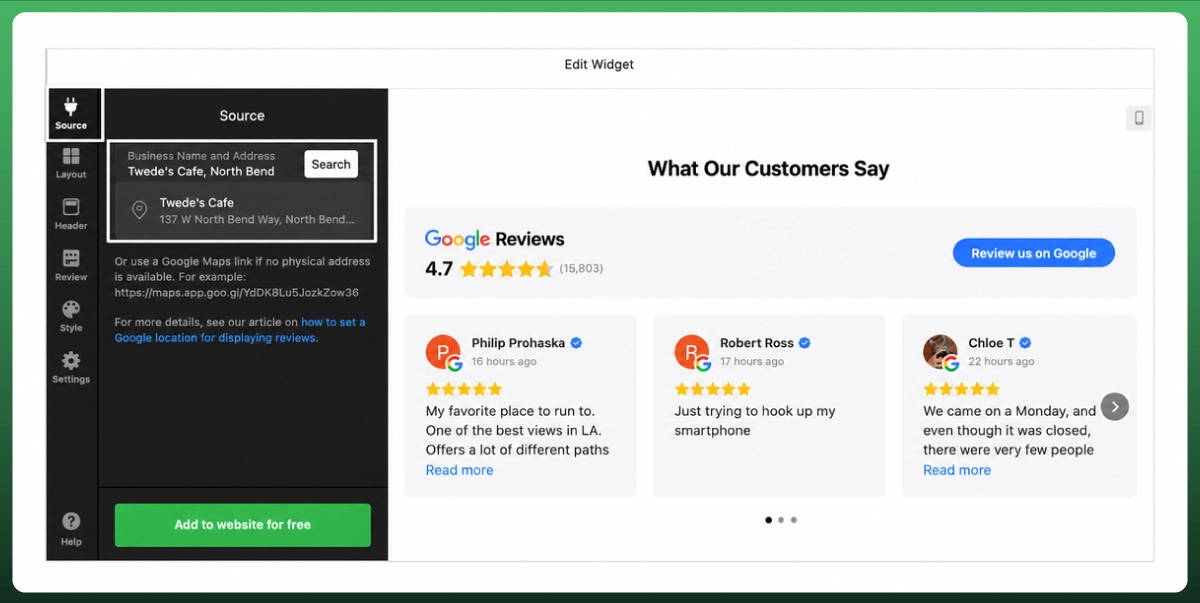
Connect your Google Business Profile within the tool. This usually requires your business name, Google Place ID, or a direct link to your Google Places listing.
Step 3:
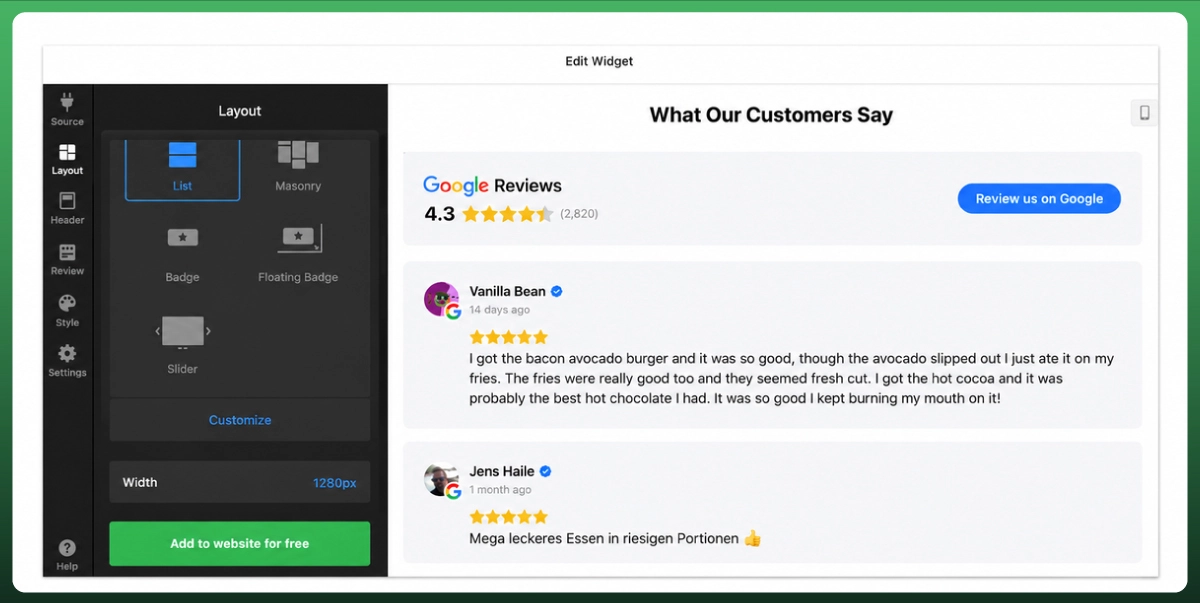
Customize your widget. Choose a layout (carousel, grid, or review slider), adjust colors and fonts, set a minimum rating filter if needed, and preview it on desktop and mobile views. Some tools also support photo reviews and combo widget layouts that blend Google Reviews with reviews from other platforms.
Step 4:
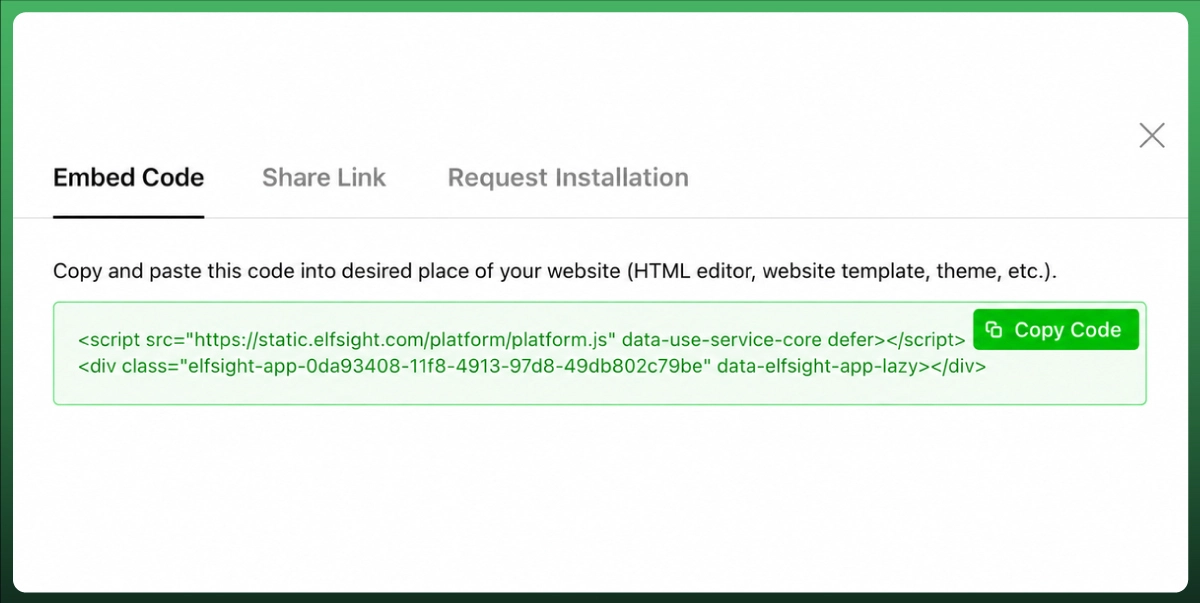
Copy the generated embed code. Make sure the code uses HTTPS, not HTTP. Wix blocks HTTP embeds on live sites as part of a frontend security update rolled out in late 2025.
Embedding the Code in Wix
Classic Editor: Click the + Add button on the left sidebar. Navigate to Embed Code > Popular Embeds > Embed HTML. A gray iframe box appears on your page. Click Enter Code, paste your widget code, and click Update.
Harmony Editor (2026): Click + Add at the top left. Select Elements. Hover over the More Options icon, scroll down, and click Embed. Drag the "Embed code" element onto your page, click the Settings icon, paste your code, and apply.
Wix Studio: Go to Add Elements > Embed & Social > Embed Code > Embed HTML. Same paste-and-apply process from there.
Resize the iframe to fit your page layout. Test on a real phone, not just the Wix mobile preview, because undersized iframes create scrollbars that break the experience on smaller screens.
Pros of This Method
Full design control.
Works across multiple sites.
Many tools offer an advanced review management system with filtering and moderation.
Some support engaging review widgets with video and photo reviews.
Your review data stays with you even if you migrate away from Wix.
Cons of This Method
Requires a Wix Premium plan.
Slightly more setup steps than the App Market method.
Some older embed snippets broke after Wix's December 2025 security update. Always request the latest 2026-compatible code from your widget provider.
Method 3: Add Google Reviews Manually
If you have a handful of standout customer testimonials and want complete control over what appears on your site, the manual route works well. This is also the only method available on Wix's free plan.
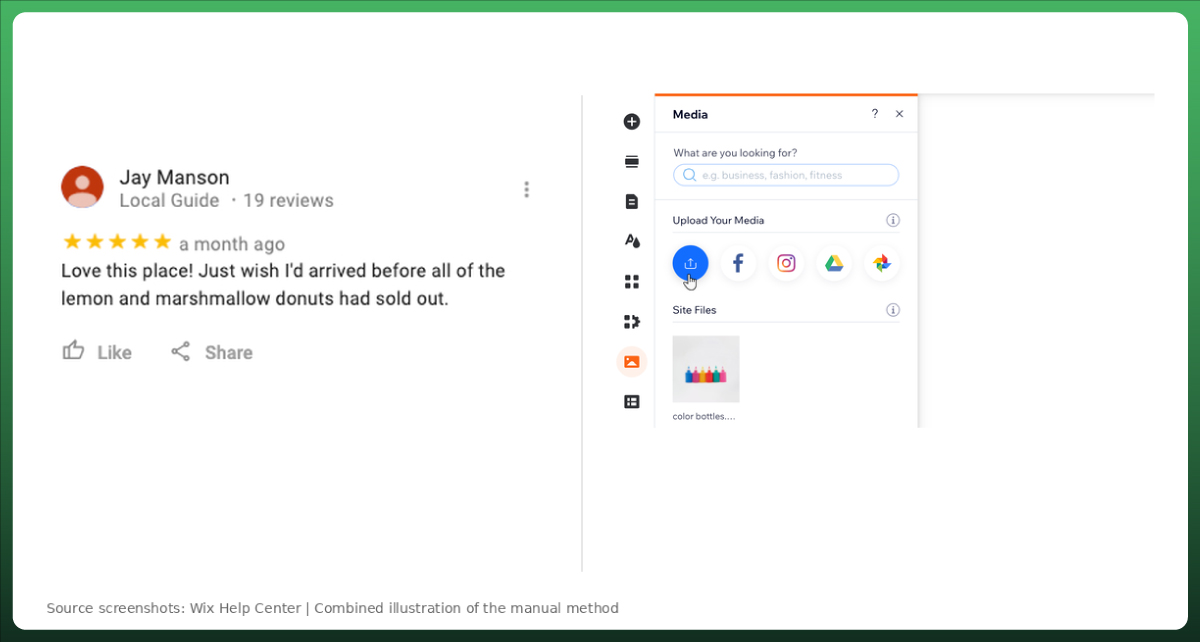
Option A: Screenshot Your Best Reviews
Go to your Google Business Profile, find the reviews you want to feature, and take clean screenshots that include the reviewer's name, star rating, and review text. Upload these as images in the Wix Editor and place them on your page.
This is quick but limited. Screenshots are not searchable by Google, do not support rich snippets, and require manual updates whenever you want to swap in newer reviews.
Option B: Copy Review Text Into a Text Block
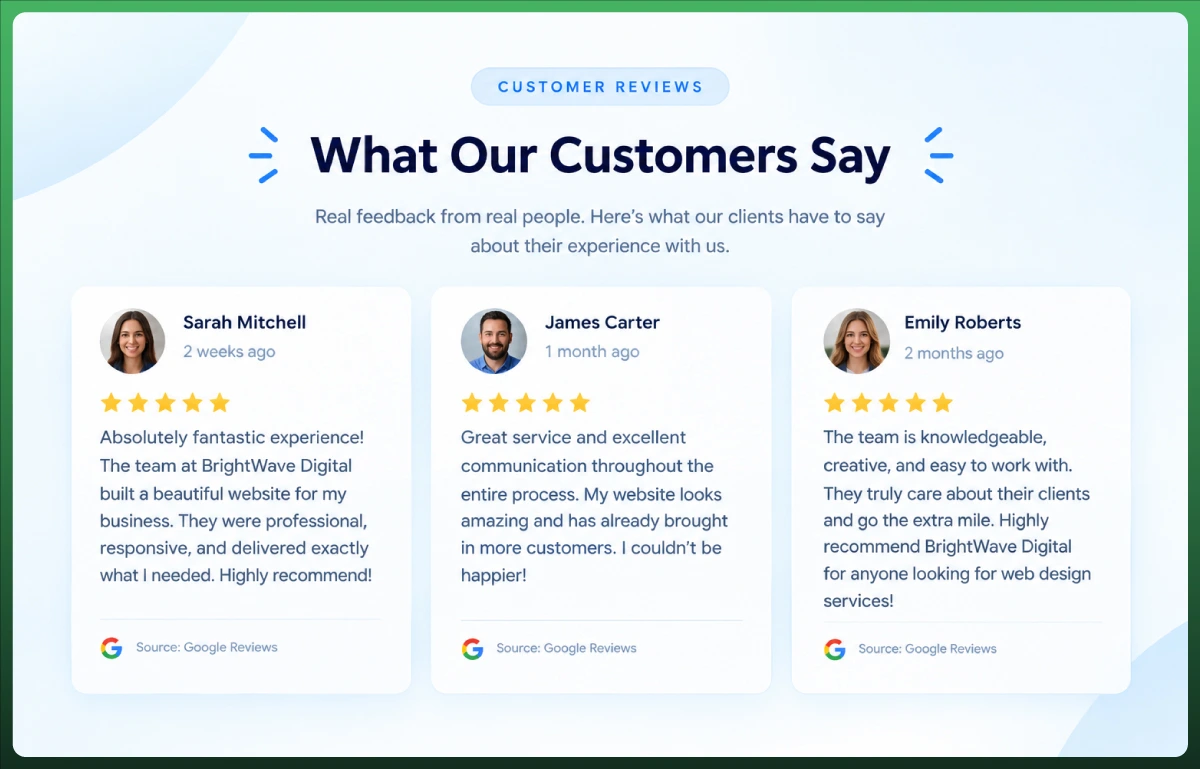
Instead of screenshots, create a styled text section on your Wix page. Copy the review text, include the reviewer's first name and date, and add a small "Source: Google Reviews" note for credibility. This keeps your content accessible and readable by search engines.
The downside is that hand-typed reviews without a verifiable link to Google can reduce customer impressions. Some visitors question whether unlinked testimonials are genuine, so transparency matters here.
Pros of This Method
Works on Wix's free plan. Complete control over which reviews appear. No third-party tools or costs. Negative reviews will never auto-populate on your site.
Cons of This Method
No automatic updates. You must manually refresh content whenever new reviews come in. Does not scale well beyond five or six reviews. No structured data or review schema support.
Method 4: Embed Google Maps to Show Your Star Rating
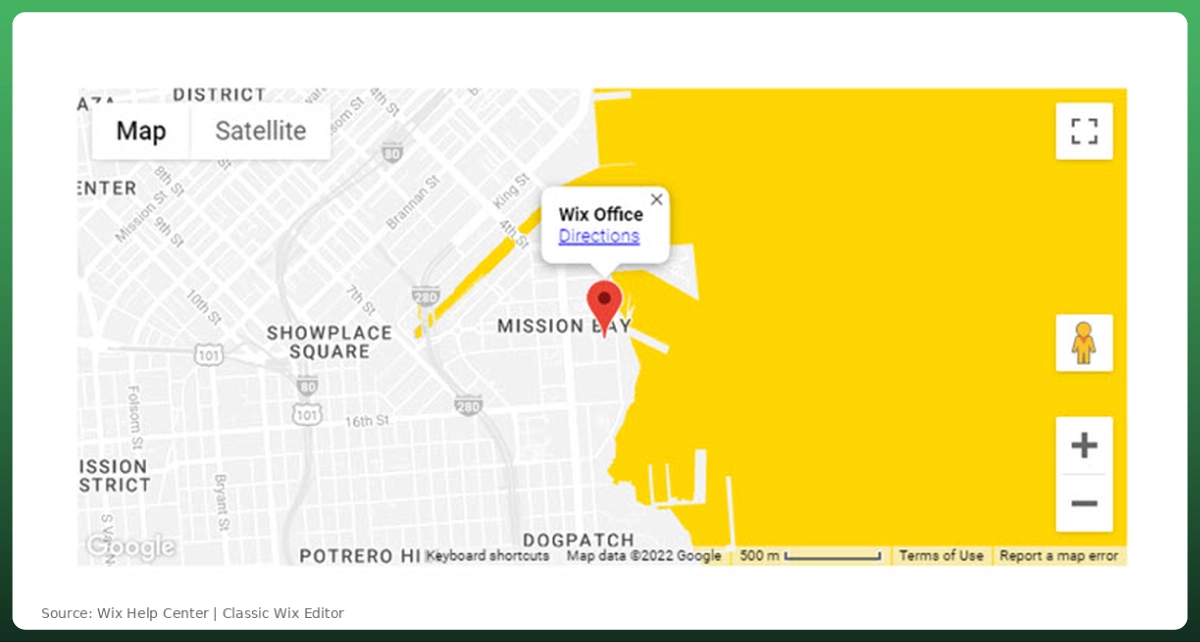
This is a clever option for local, brick-and-mortar businesses. Instead of displaying full review text, you embed a Google Maps pin for your business location. When visitors click the pin, they see your business name, address, and star rating in the preview card.
Step 1:
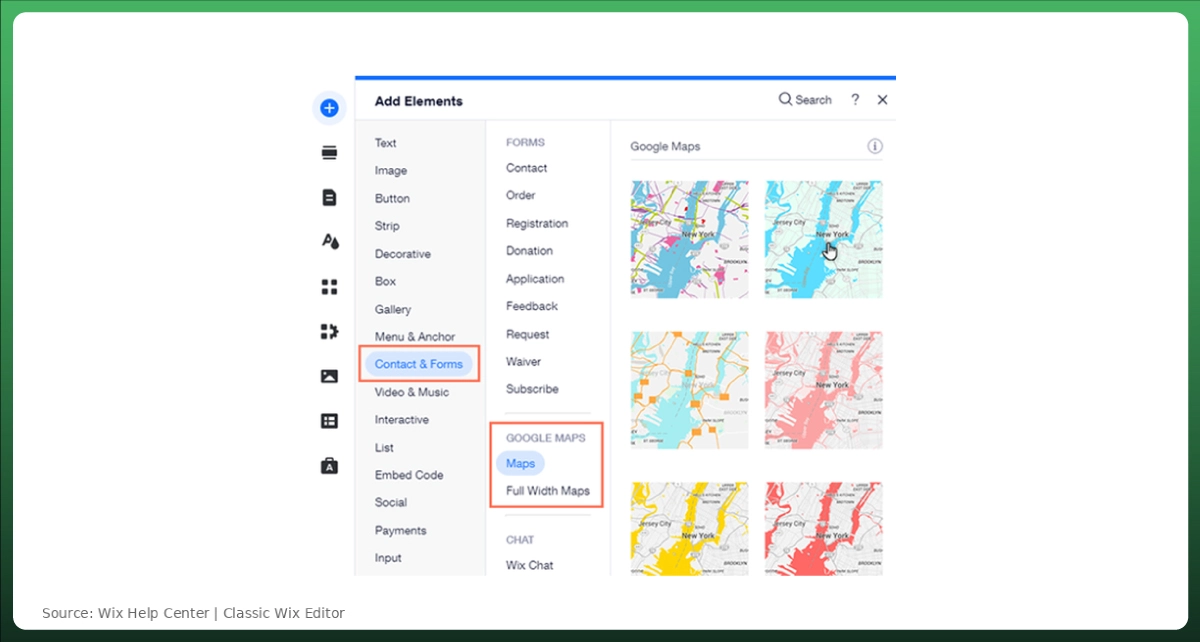
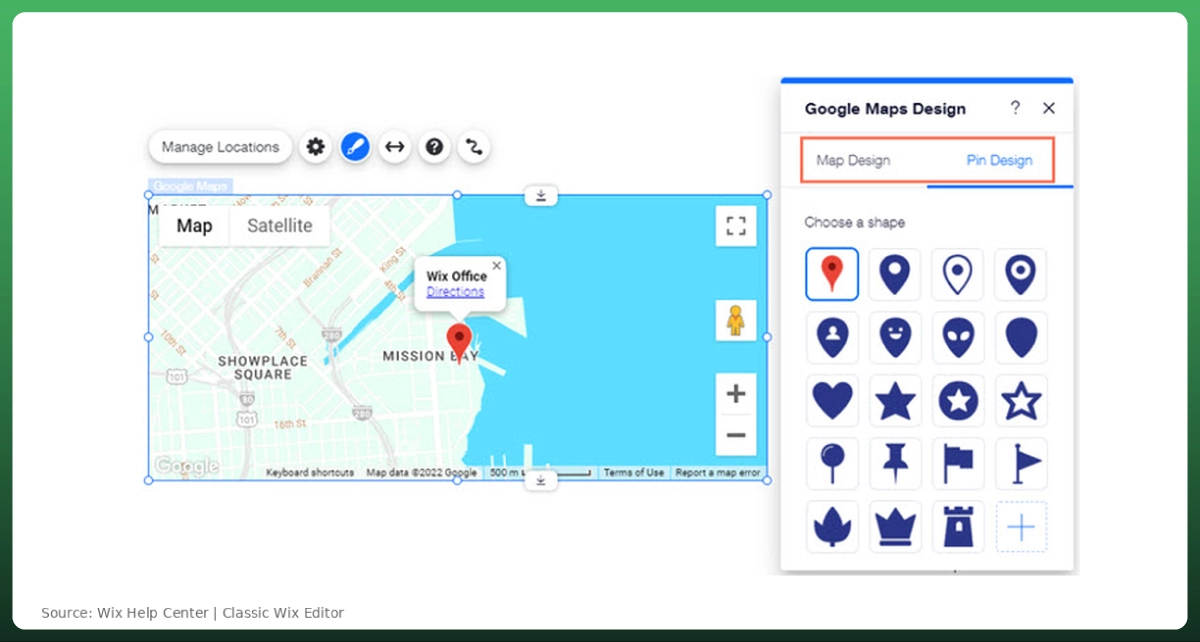
In your Wix Editor, click Add Elements > Contact & Forms > Google Maps.
Step 2:
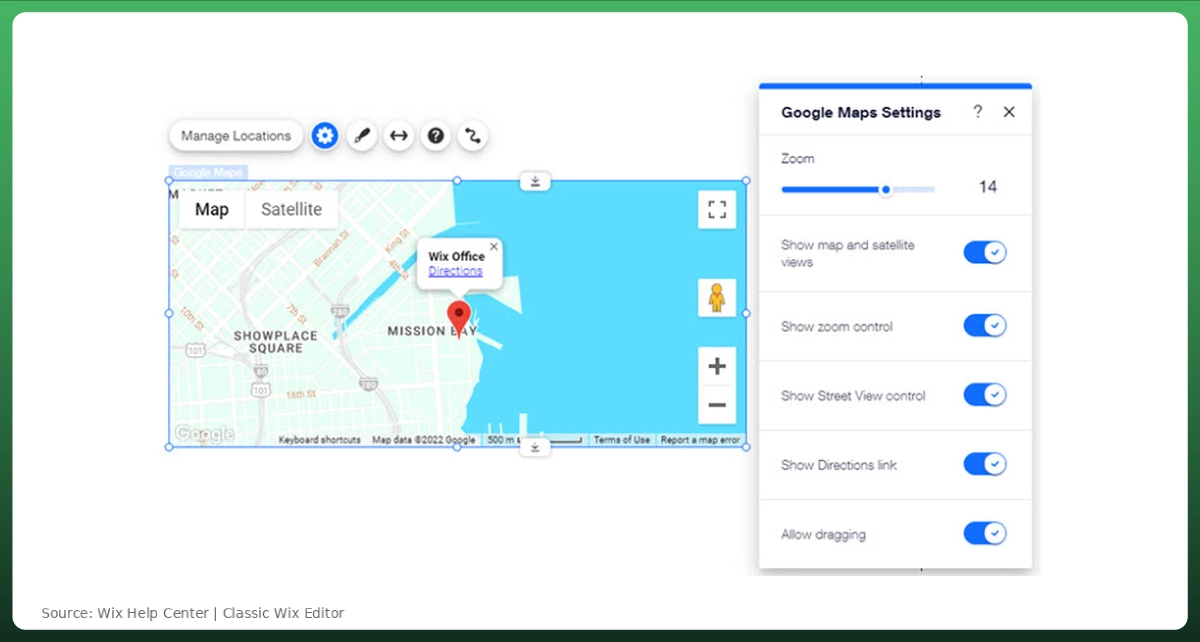
Enter your business address. The map embeds a pin at your location.
Step 3:
Adjust the zoom level, map style, and pin design. Choose a pin that stands out so visitors are encouraged to click it.
Step 4:
Resize and position the map element, then publish.
Pros of This Method
Completely free and native to Wix. No apps, plugins, or external code needed. Reinforces your local presence and supports local SEO signals. Simple to set up in under five minutes.
Cons of This Method
Visitors must click the map pin to see your star rating. Full review text is not displayed on your website. Not effective for service-area or online-only businesses. Customer impressions depend on users actively interacting with the map.
Building a Wix site from scratch or planning a redesign? Our web design and development team specializes in creating Wix sites built for growth. See Our Services
Why Display Google Reviews on Your Wix Website
Google Reviews are one of the strongest forms of social proof available to small businesses today. According to BrightLocal's 2025 Consumer Review Survey, 87% of consumers read online reviews for local businesses before making a purchase decision. Displaying customer testimonials directly on your website removes the extra step of visitors leaving your site to check your reputation elsewhere.
From a conversion rate standpoint, positive reviews placed near call-to-action buttons reduce purchase hesitation. They also improve the average time visitors spend on your pages, which sends positive engagement signals to search engines. For Wix store owners running ecommerce operations, visible product reviews and business reviews near checkout can directly lower cart abandonment.
Beyond trust, embedded Google Reviews support your search engine ranking. When structured correctly with rich snippets, your review star rating can appear directly in search results. This visibility gives your listing a significant click-through advantage over competitors without star rating snippets.
Where to Place Google Reviews for Maximum Impact
Placement matters as much as the method you choose. Dropping a reviews widget in a random footer section is a missed opportunity. Strategic placement builds trust with customer interactions at the exact moment visitors are making decisions.
Homepage, Above the Fold or Near the Primary CTA
This is the highest-impact placement. When a first-time visitor lands on your site and immediately sees recent customer reviews near a "Book Now" or "Get a Quote" button, it reduces hesitation. Position the widget between your value proposition and your main call to action.
Service or Product Pages
Place reviews directly on the pages where visitors evaluate what you offer. For ecommerce stores, product reviews near the "Add to Cart" button lower abandonment. For service businesses, testimonials near pricing sections validate the investment.
Contact or Booking Pages
Visitors on your contact page are already considering reaching out. Positive reviews here serve as the final confidence boost before they fill out a form or pick up the phone.
Dedicated Testimonials Page
If you have 50 or more reviews, a standalone reviews page gives your social proof its own real estate. Link to it from your navigation menu so visitors can explore it at their own pace.
Common Mistakes to Avoid
Using HTTP Embed Codes
Wix blocks any embed snippet loaded over HTTP on live sites. If your widget appears in preview but vanishes after publishing, check that your embed code starts with "https://." This is the most common reason widgets fail silently.
Placing Reviews on Every Page
More is not better. Target high-intent pages like your homepage, key service pages, and checkout flow. Adding a reviews plugin to your privacy policy or terms page does nothing for conversions.
Displaying Only Five-Star Reviews
A perfect 5.0 average actually raises suspicion. Studies consistently show that a 4.7 to 4.9 average converts better because it feels authentic. If your widget tool lets you filter by minimum rating, include four-star reviews too.
Ignoring Mobile Display
Wix embeds use fixed iframes, and an undersized iframe creates scrollbars on mobile that break the layout. Always test your reviews widget on a real phone after publishing. The Wix mobile preview is not always accurate.
Forgetting to Update Manual Reviews
If you went the manual route, set a monthly reminder to check for fresh customer reviews worth featuring. Stale testimonials from two years ago undermine the trust you are trying to build.
Want your Wix website to rank higher and convert better? Google Reviews are just one piece of the puzzle. Our digital marketing experts offer a complete online growth strategy. Explore Our Digital Marketing Services
Frequently Asked Questions
Do I need a Wix Premium plan to add Google Reviews?
Yes, for any method that involves embedding external code or installing an app. Wix's free plan blocks external HTML on published domains. The only workaround on the free tier is adding reviews manually using text blocks or image screenshots.
Will embedded Google Reviews update automatically?
If you use the Wix App Market or a third-party embed widget, yes. These tools pull reviews directly from your Google Business Profile and sync new ones automatically. The manual method requires you to update reviews by hand whenever you want to add fresh ones.
Can I choose which Google Reviews appear on my Wix site?
Most reviews widget tools and Wix App Market apps let you filter by star rating. You can set a minimum rating to display only four-star and above. Some tools also support a reviews management dashboard where you can approve or hide specific reviews before they appear on your website. If you use the manual method, you have full control by selecting individual reviews.
Does adding Google Reviews help my Wix website rank better?
Embedded reviews improve engagement signals like time on page and lower bounce rate, both of which support search engine ranking. When you implement proper review schema markup, your star rating can also appear as rich snippets in search results, which boosts click-through rates. However, the biggest local SEO factor remains the volume and recency of reviews on your Google Business Profile itself.
What is the best Google Reviews app for Wix in 2026?
There is no single best app because needs vary. Google Reviews by Elfsight and Fera Reviews are popular choices in the Wix App Market for their customization options and responsive markup layouts. For businesses needing more control, third-party tools like SociableKIT and EmbedSocial offer broader features, including cross-platform review site accounts.
Why are my embedded Google Reviews not showing on my live Wix site?
Three likely causes. First, your embed code may use HTTP instead of HTTPS. Second, the widget snippet might be outdated. Wix tightened frontend security in late 2025, and some older embed codes now fail silently. Contact your widget provider for a 2026-compatible snippet. Third, the iframe may be too small.
Can I display Google Reviews alongside social media reviews on Wix?
Yes. Several third-party tools support a combo widget that pulls reviews from Google, Facebook, Yelp, and other platforms into a single display. This works well for businesses active on social media marketing channels who want to consolidate all their social proof in one place.
Need A Better Wix Website?
Get Expert Wix Design & Development Services From Ecomgiantz.
Ecomgiantz Team consists of our in-house experts who share their hands-on experience in ecommerce businesses, websites, marketplaces, etc. We also share the latest updates, insights, and market trends that can be helpful for your online business.