How to Remove or Edit the Robots.txt File in Shopify
You can’t fully remove the robots.txt file from a Shopify store, and you wouldn’t want to. Shopify builds it for every store, and its default rules guard your technical SEO.…

You can’t fully remove the robots.txt file from a Shopify store, and you wouldn’t want to. Shopify builds it for every store, and its default rules guard your technical SEO.…
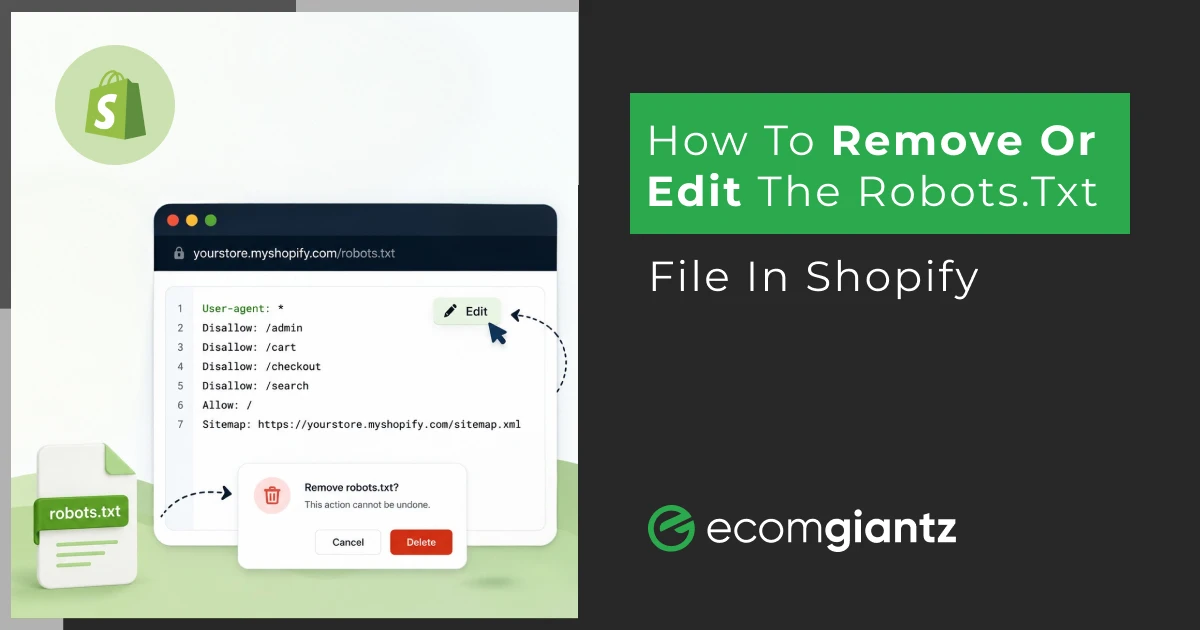


You can't fully remove the robots.txt file from a Shopify store, and you wouldn't want to. Shopify builds it for every store, and its default rules guard your technical SEO. But you can edit it through a theme template called robots.txt.liquid.
To change or edit the robots.txt file in Shopify, head to Online Store, then Themes, then Edit code, and add the robots.txt.liquid template. From there, you write your rules in Liquid.
I’ve fixed this exact problem for plenty of merchants who panicked after spotting a blocked URL in Google. So I’ll show you what the file does, how to view it, and how to change it without breaking your shop. No code fear required on your end.
Let’s begin.
A robots.txt file is a small text file that sits at the root of your domain. This is a crucial part of technical SEO. It tells search engine crawlers which pages they may request and which ones to skip. Google, Bing, and other search engine bots read it first, before they touch anything else on your site.
The format stays simple. One line names the bot, the next line allows or blocks a path. Cloudflare describes the file as guidance for good bots, not a lock. Polite crawlers follow it, while shady scrapers can ignore it completely.
Shopify robots.txt file is important because the file shapes your crawl budget. Search engines spend limited time on each website. Sharp rules keep them on your products and collections, away from low-value URLs like cart, checkout, or internal search results.
Viewing any site’s file takes about two seconds. Type the domain into your browser, add /robots.txt to the end, and hit enter. For example, yourstore.com/robots.txt shows the live rules. This trick works on every website, not just storefronts.
You’ll see plain text with User-agent, Disallow, and Allow lines. If the address returns a 404 or a blank screen, that site has no file yet. Conductor and the official Web Robots Pages both list this root-level check as the standard method.
Curious about rivals? Peek at their files the same way. It reveals which sections they hide from search engine crawlers and where they point their XML sitemap. A few competitor checks often teach you more than a long tutorial ever could.
Now for the question that brought you here. Can you remove the robots.txt file from a Shopify website entirely? Honestly, no. Shopify generates it for every store, and there’s no off switch hiding in your admin. That limit is intentional, and it protects you.
Shopify’s own Help Center stays blunt about this. The default file is built for search performance, and removing it can expose private areas or sink your traffic. Their warning is direct: incorrect edits can cause the loss of all your Shopify SEO wins. So caution wins here.
What you actually gain is control, not deletion. Since June 2021, Shopify lets you customize the file through a Liquid template. You can append rules, drop specific defaults, or revert to the original. That covers nearly every real need behind a “remove robots.txt” request.
Not getting enough search visibility? Reach us for our Digital Marketing services.
Editing happens inside your theme, not on a settings page. Go to the Shopify admin and create a template named robots.txt.liquid, then write rules in Liquid. This route keeps Shopify’s automatic updates intact, which matters as their defaults improve over time. Let me break the steps into plain moves.
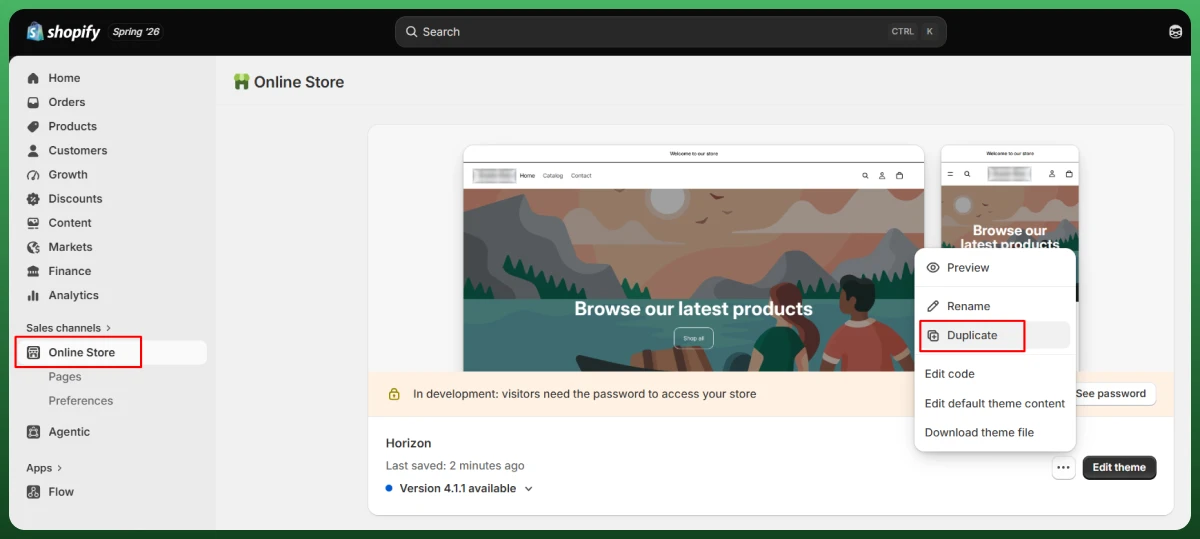
Before you touch a single line, duplicate your live theme. Open Online Store, then Themes, find the Actions menu, and click Duplicate. You’ll edit the copy, test it, and publish only once it’s clean. This one habit has rescued many stores from a rough afternoon.
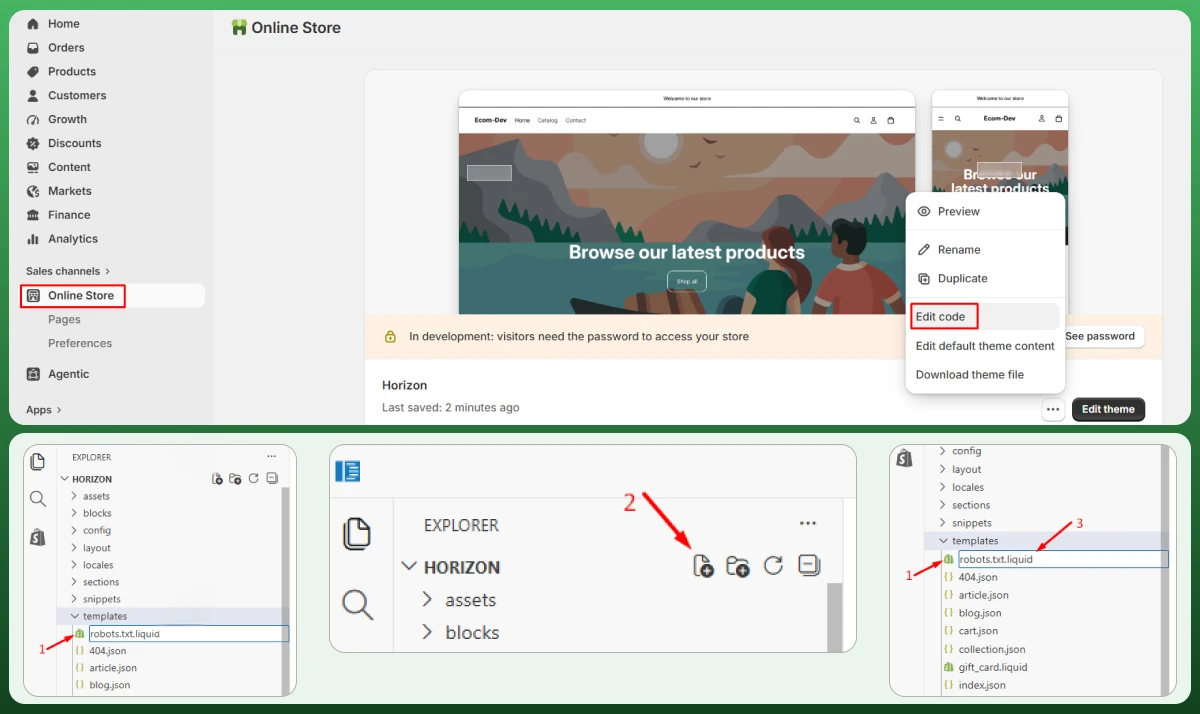
Next, open the theme code. Head to Online Store, then Themes, click the three-dot menu, and choose Edit code. Select “Add a new template,” pick robots from the list, and create it. The platform loads its default rules inside a tidy Liquid loop for you.
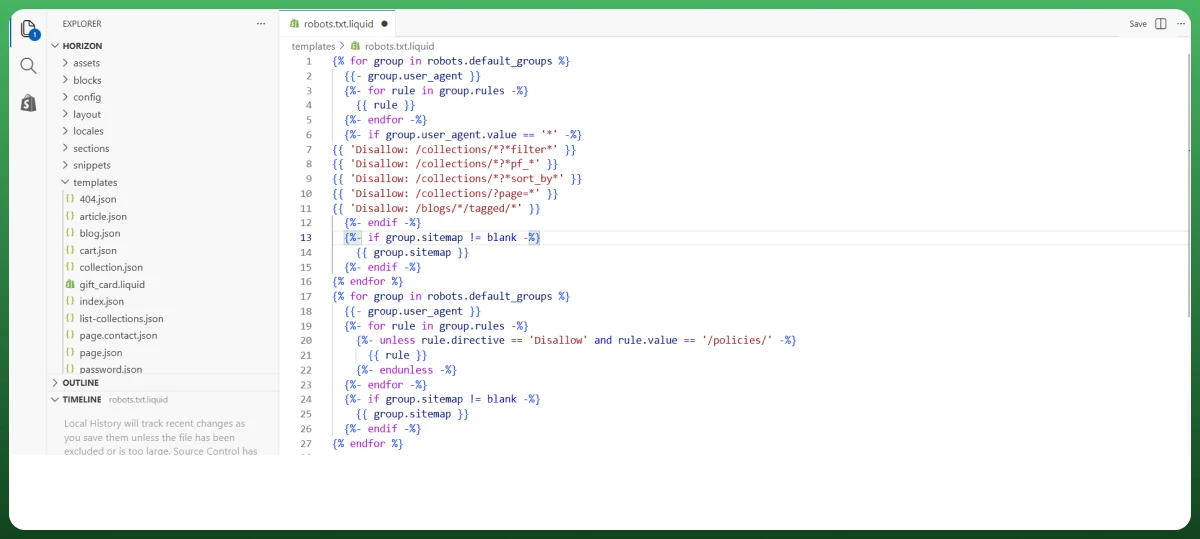
There are 3 customisations you can make to this file:
A "group" is a set of rules that apply to a specific crawler or set of crawlers.
1. Add a New Rule to an Existing Group
Use this when you want to block additional URLs — like faceted filters or tag pages — that Shopify doesn't block by default.
| {% for group in robots.default_groups %} {{- group.user_agent }} {%- for rule in group.rules -%} {{ rule }} {%- endfor -%} {%- if group.user_agent.value == '*' -%}{{ 'Disallow: /collections/*?*filter*' }}{{ 'Disallow: /collections/*?*pf_*' }}{{ 'Disallow: /collections/*?*sort_by*' }}{{ 'Disallow: /collections/?page=*' }}{{ 'Disallow: /blogs/*/tagged/*' }} {%- endif -%} {%- if group.sitemap != blank -%} {{ group.sitemap }} {%- endif -%}{% endfor %} |
The if group.user_agent.value == '*' check ensures these rules only get added to the wildcard group (all bots). The * acts as a wildcard — so /collections/*?*filter* blocks any collection URL containing a filter parameter.
2. Remove a Default Rule from an Existing Group
Shopify includes a rule that blocks /policies/ by default. If you want those pages crawled, you can exclude that rule using unless:
| {% for group in robots.default_groups %} {{- group.user_agent }} {%- for rule in group.rules -%} {%- unless rule.directive == 'Disallow' and rule.value == '/policies/' -%} {{ rule }} {%- endunless -%} {%- endfor -%} {%- if group.sitemap != blank -%} {{ group.sitemap }} {%- endif -%}{% endfor %} |
This loops through every rule and outputs all of them except the one disallowing /policies/. Just change the rule.value to whatever path you want to unblock.
3. Add Custom Rules for Specific Bots
If you want to target a bot that isn't in Shopify's default groups, append custom rules at the bottom of your template.
Block the Wayback Machine:
| User-agent: ia_archiverDisallow: / |
Add an additional sitemap:
| Sitemap: https://yourstore.com/custom-sitemap.xml |
These custom blocks sit outside the {% for group %} loop, so they won't interfere with Shopify's default rules.
That covers the three patterns. The key principle: always keep the default {% for group %} loop intact — Shopify's built-in rules are well-optimised, and you're just extending or filtering on top of them.
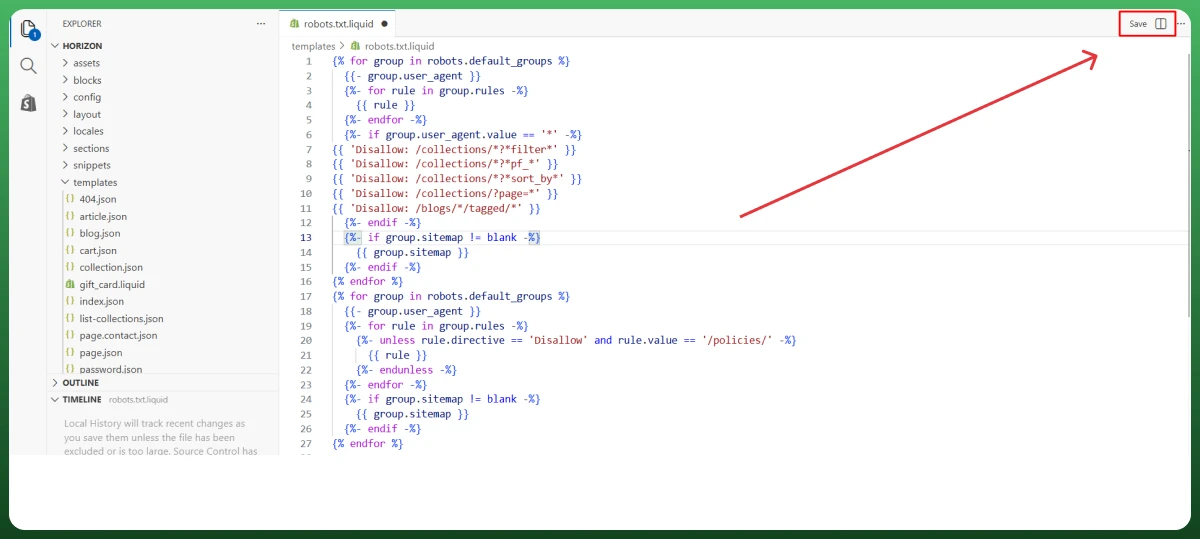
Once your rules look right, save the file. Edits apply instantly on the published theme, though crawlers react on their own clock. If you worked on a duplicate, publish it now. Then move straight into testing, which I walk through in the next section.
Sometimes you don’t want a new rule. You want an old one gone, or you want the whole thing back to factory condition. Both are simple. Your approach depends on whether you’re dropping one directive or undoing every change at once.
To remove a single default rule, wrap it in a Liquid condition that skips it. The template supports an “unless” statement, so you tell Shopify to print every rule except the one you name. The move stays surgical, reversible, and safe for the rest of the file.
To reset completely, delete the robots.txt.liquid template from your theme. The platform instantly restores its original file. Brainspate and several Shopify community threads confirm this revert trick, and it’s the closest thing to a true removal you’ll ever find on the platform.
Never trust an edit you haven’t checked. A single stray slash can block your entire catalog. Testing takes minutes and protects months of ranking work, so treat it as part of the task, not as an optional extra you’ll get to later.
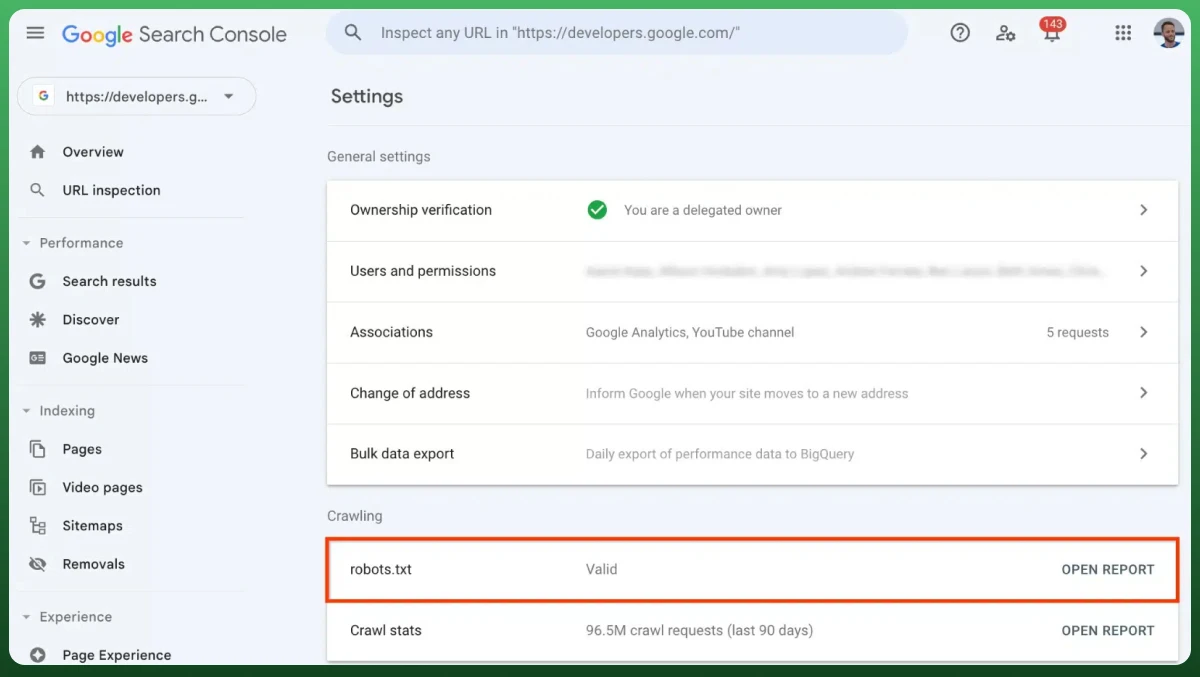
Open Google Search Console, go to Settings, then Crawling, then robots.txt, and click Open Report. This shows the file Google currently reads and flags any errors. The old standalone tester is mostly retired now, so this report has become your main window into the file.
For a fast second opinion, run your URLs through a validator like TechnicalSEO.com. You can also use URL Inspection in Google Search Console to confirm a specific page is crawlable. Two quick checks always beat one hopeful guess, especially on a live store.
Yes, and more than most owners expect. This file is a foundation of technical Shopify SEO. Handled well, it steers crawlers toward your money pages. Handled badly, it can erase your visibility overnight. A little respect goes a very long way.
The upside is crawl efficiency. By blocking checkout, cart, and duplicate filtered URLs, you let bots spend their budget on products that earn sales. GoFish Digital notes that larger Shopify catalogs gain the most from this kind of focused control.
The downside is risk. Block a collection by accident, and Google stops crawling it. You may also spot “Indexed, though blocked by robots.txt” inside your reports. That message is usually harmless, yet it earns a quick look from you each time it appears.
Here’s a mix-up I see almost weekly. People block a page in robots.txt to keep it out of Google. That’s the wrong tool. Blocking a path stops crawling, yet the page can still surface in results if other sites link to it.
Google Search Central states this plainly. Robots.txt is not a way to hide a page from search. To keep a URL out of results, you use a no index tag or a password instead. The file manages crawler traffic; no index manages website indexing. Two different jobs.
So ask yourself what you truly want. Need to save crawl budget on filtered URLs? Reach for robots.txt. Need a thank-you page removed from search? Reach for noindex. Picking the right method saves you hours of confusion and a few avoidable support tickets.
A few habits keep this file working for you instead of against you. I’ve pulled the ones that matter most from years of store audits and from Shopify’s published guidance. None of them demand deep coding skills, and each one lowers your risk.
Shopify’s default rules exist for solid reasons. They block thin content and duplicate pages that would otherwise waste your crawl budget. Unless you have a clear, tested reason to remove a rule, leave it alone. Restraint protects your rankings far better than constant tinkering.
A fresh concern in 2026 is AI bots. Web crawlers such as GPTBot and ClaudeBot now scrape sites for training data. If you’d rather opt out, add a User-agent block for each and disallow it. If you want the exposure, simply leave them allowed.
Your file is public. Anyone can read it by adding /robots.txt to your domain, so listing a secret folder there only advertises it. Google and digital.gov both warn against this habit. Guard private pages with passwords or a noindex tag, never with a lonely Disallow line.
Most stores never need to touch this file, and that’s perfectly fine. Shopify itself says the default setup suits the majority of merchants. Editing makes sense only when a real problem shows up in your data. Let me name the common triggers worth acting on.
You might edit when faceted navigation creates thousands of filtered URLs that drain your crawl budget. Large catalogs with color, size, and price filters feel fast. A targeted Disallow rule clears the clutter and refocuses search engine crawlers on pages that matter.
Other valid reasons include blocking AI scrapers, adding an extra XML sitemap, or freeing a page that the platform hid by default. If none of these match your situation, save your energy. A robots file that already works rarely needs a fix from you.
Let’s repeat the basics again. You can’t remove robots.txt file from a Shopify store, but you can edit, trim, and reset it with confidence. View it in your browser, change it through Liquid, and verify every move inside the Search Console before you relax.
An honest piece of advice would be: touch this file only when your data asks for it. When a change is truly needed, go slow, save a backup theme, and check your work twice.
If your store’s crawling or indexing feels off, Ecomgiantz can audit it for you and adjust the rules safely. Reach out for a free consultation and subscribe to our newsletter for more practical Shopify SEO tips you can use today.